Run a QR Report
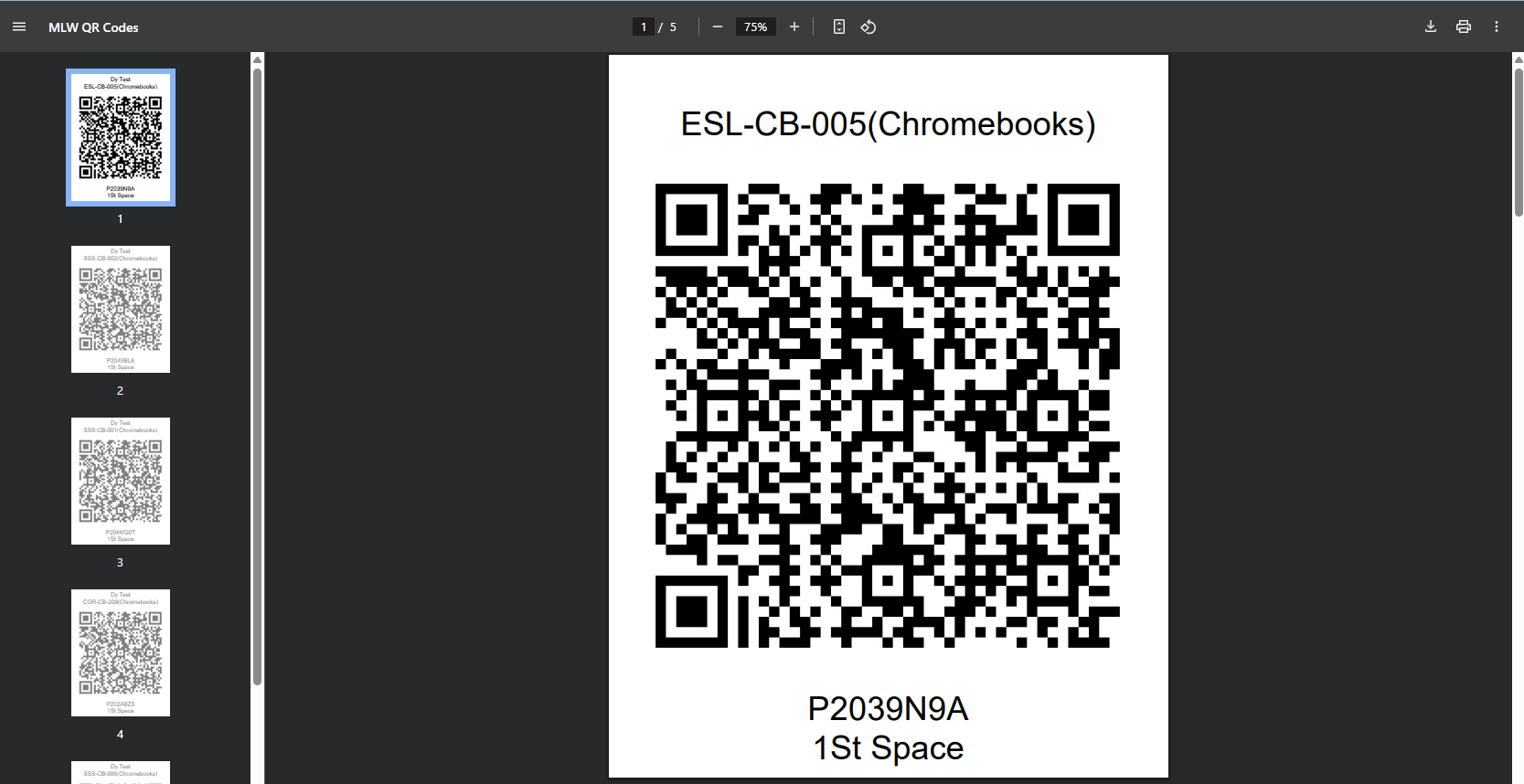
You can print a sheet of QR codes for selected assets. When you scan an asset's QR code:
- If the asset is not in the system, the Manage Assets page appears with the Barcode field populated.
- If the asset is in the system, the asset details page appears.
- That asset is automatically added to a request, if you are in the process of creating a new or updating an existing request.
QR codes must be configured prior to running a QR Report. You need the View Assets permission to run this report.
To run the QR Report:
-
Select Assets > View All Assets or View All Assets (all fields). The appropriate Manage Assets page appears.
- Find an asset by searching or using a filter(s).
Note: To view all assets, in the column of your choice, click
 . In the filter (
 ) section, select Check All, and then click Filter.
 - Do one of the following:
To generate... Then... An individual code For the asset you want to create a QR code for, select the Asset Display Name. The asset's details page appears.
At the bottom of the page, click QR Code.
Codes for multiple assets In the row of the assets you want to print or download QR codes for, select the checkbox.
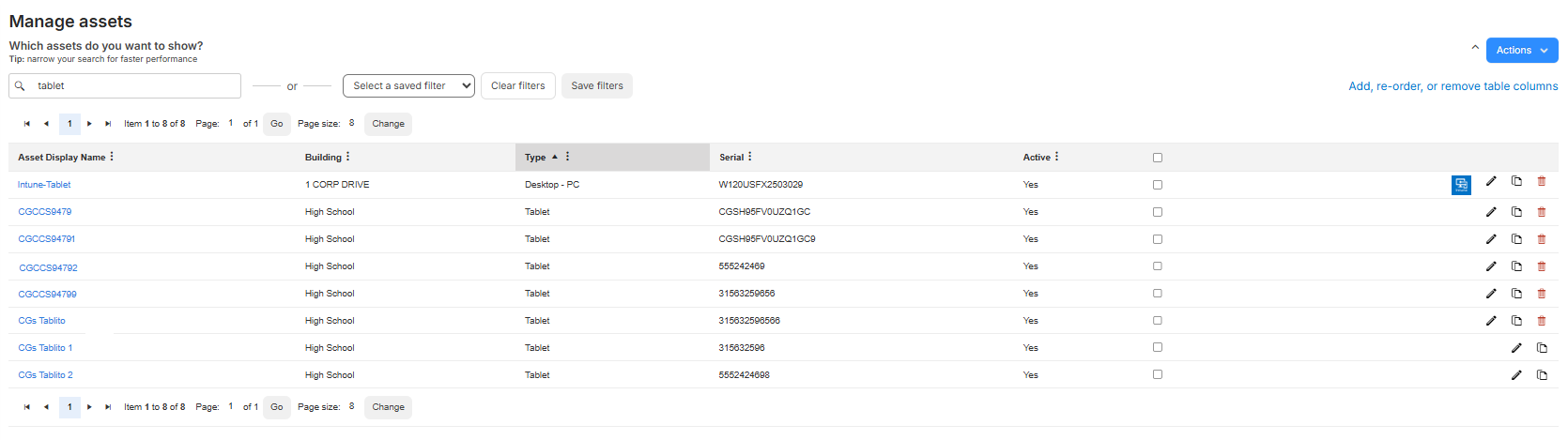
Note: There is a limit of 100 assets per QR Report.
Select Actions > QR Report.
The report opens in a new browser tab. You can print or download the report.