Submit a request
Walk-through mode guides you through each step of submitting a request.
|
Note: Some districts use a single-form page to submit requests. |
|
Important: Each district sets up its own Request Category hierarchy. Your categories may differ. |
Step 1: Who is this request for, and what is this request about?
- Do one of the following:
- Select Requests > Submit Request, and then choose the request type. The Request page appears.
- In the upper-right corner of any page, select New Request, and then choose the request type.
Notes:
The New Request screen varies depending on how your district has set up requests.
Some request types may use a single-form page instead of walk-through mode.
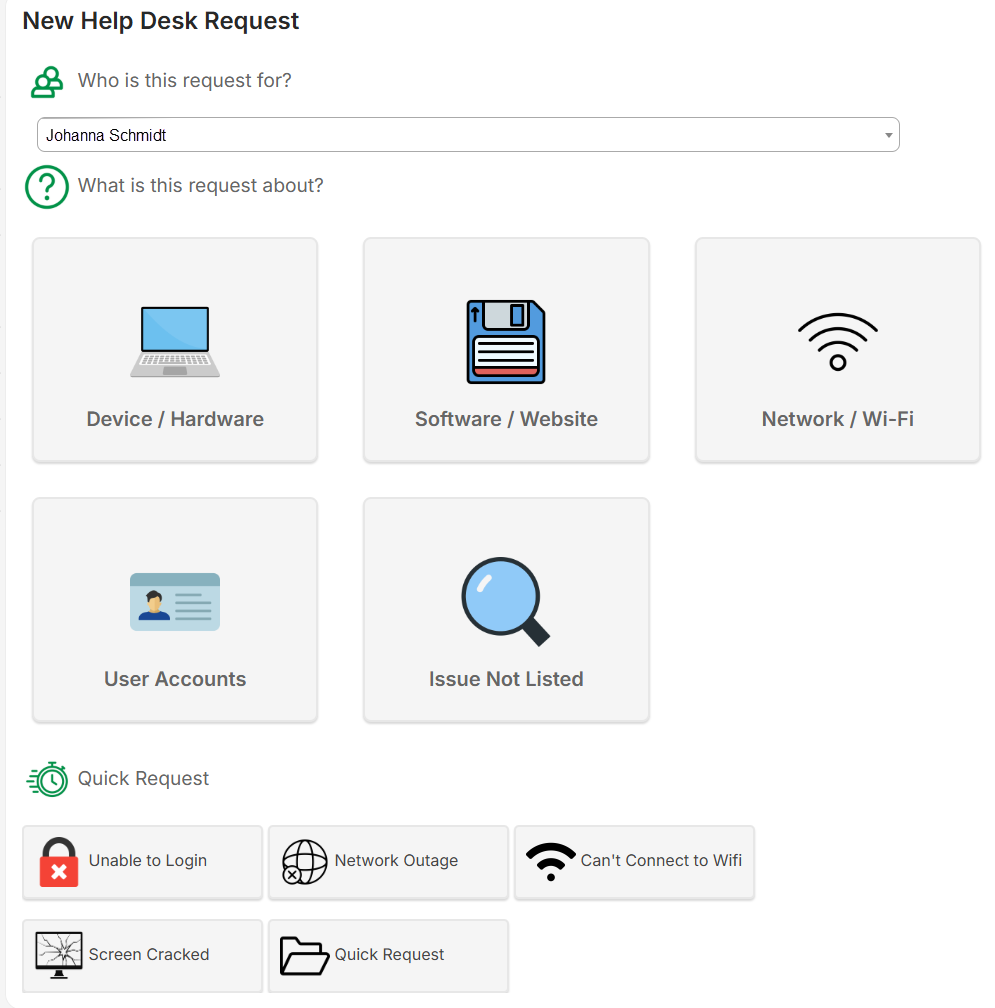
- Complete the following steps:
- Select who the request is for.
Notes:
- Your name is the default.
- If you have the Can Submit Request on Behalf of Others permission, use the drop-down to select the user this request is for.
- Click the category your request most closely aligns with.
- Continue clicking the request category that most closely aligns with your issue until you get to the location page.
Note: If you choose a Quick Request, the final review form appears. Skip to Step 4: Final Review. - Select who the request is for.
Step 2: What is the location of this request?
- On the location page, do any of the following:
Notes:
- This step does not appear if the requestor has a default building and space on their user profile page.
- This page pre-populates a building and space from your request history. You can override the default selection.
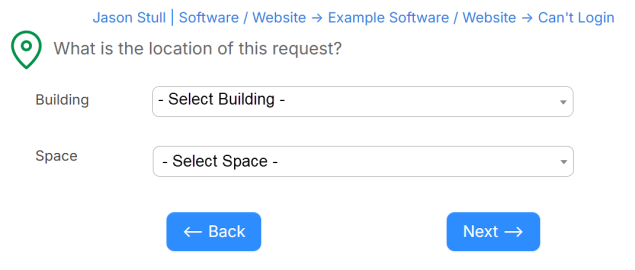
- Use the drop-down to select a Location.
- Use the drop-down to select a Space.
- Click Next.
Step 3: Do any Assets apply to this request?
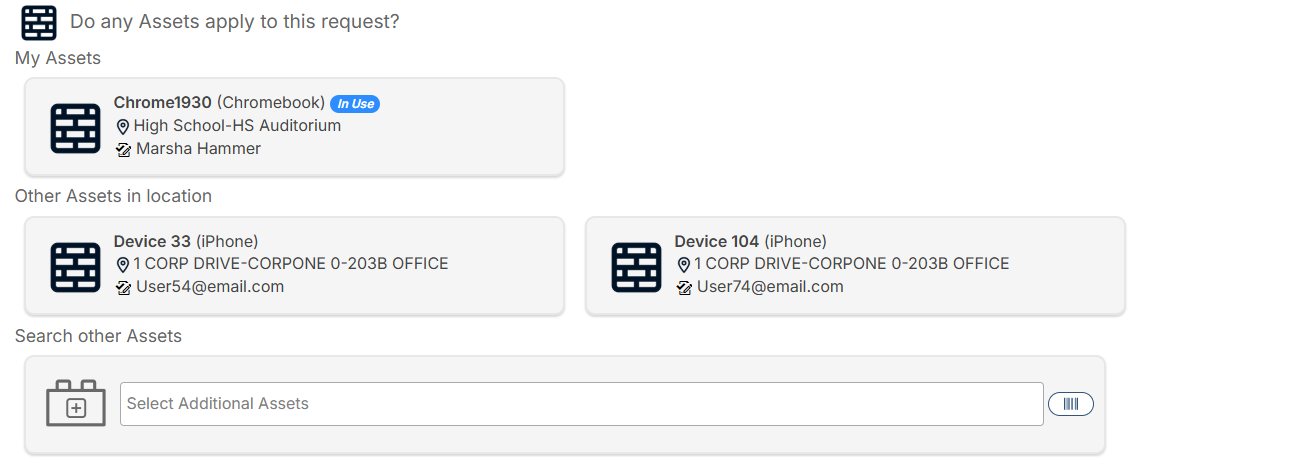
- Do one or more of the following:
- If any assets on the page apply, select the applicable ones.
- To search for an asset, start typing the asset in the Select Additional Assets field. Select the asset from the list.
- To scan an asset's barcode, click
 .
.
- Click Next. The Request page shows all the details entered thus far.
Step 4: Final Review
- Review the request to ensure the correct information has been auto-entered in the fields.
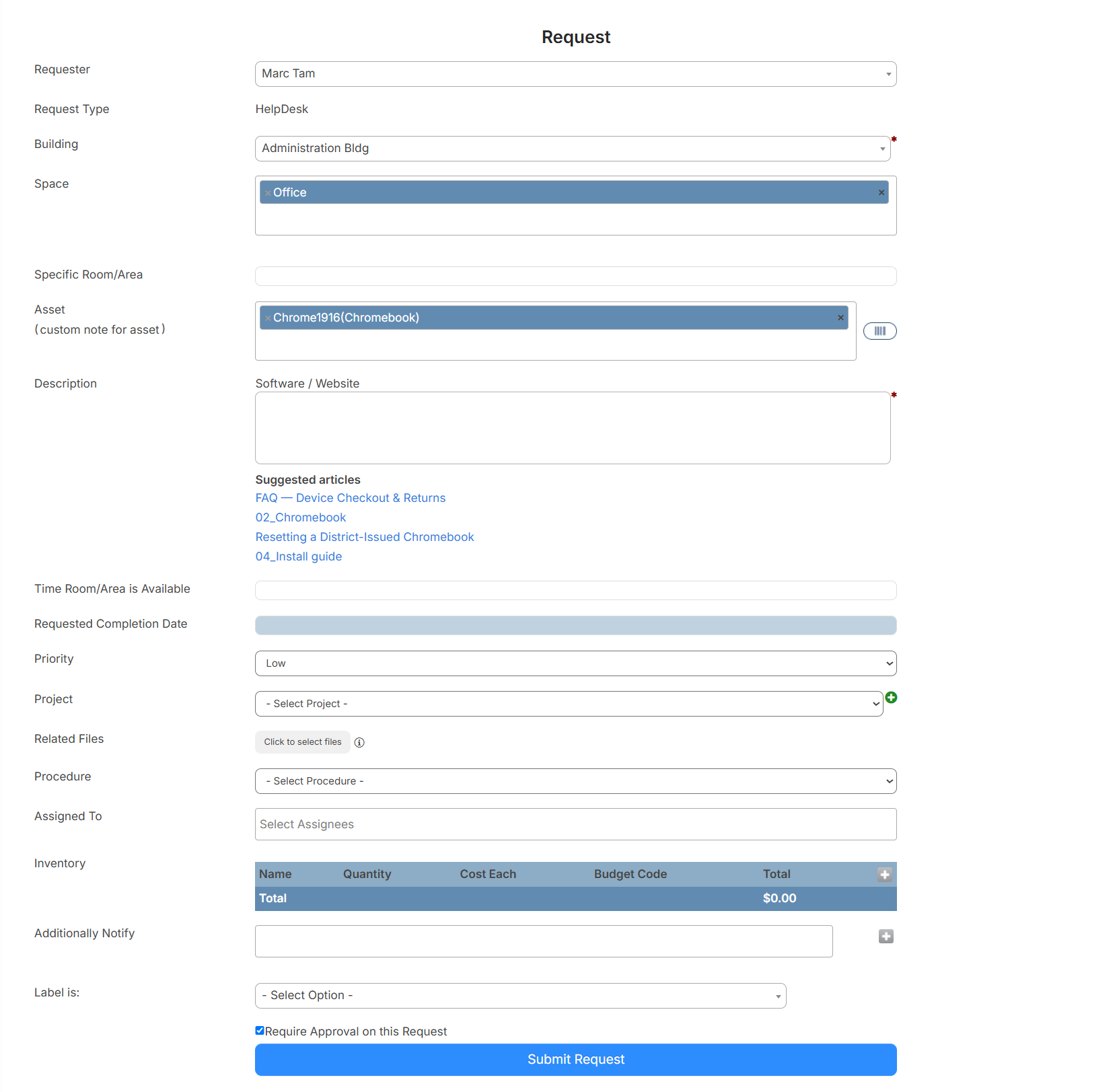
- In the Asset field, type or scan the barcodes for any additional assets.
- Enter a Description.
- If any Suggested articles appear, click a link to open an article in a new tab.
Note: Users with the Manage Knowledge Base Articles permission can edit the article.
- Upload any desired files.
- Complete all required fields, including required custom fields.
- Complete any remaining fields.
- Click Submit Request.