Configure QR codes for assets
Before users with the View Assets permission can generate a QR Report for assets, you need to configure the QR code settings. You can also generate blank QR codes to link to assets that are added in the future via import or an asset survey through Facilities Drawings.
To configure QR code settings:
- Select Assets > QR Code Settings. The QR Code Settings page appears.
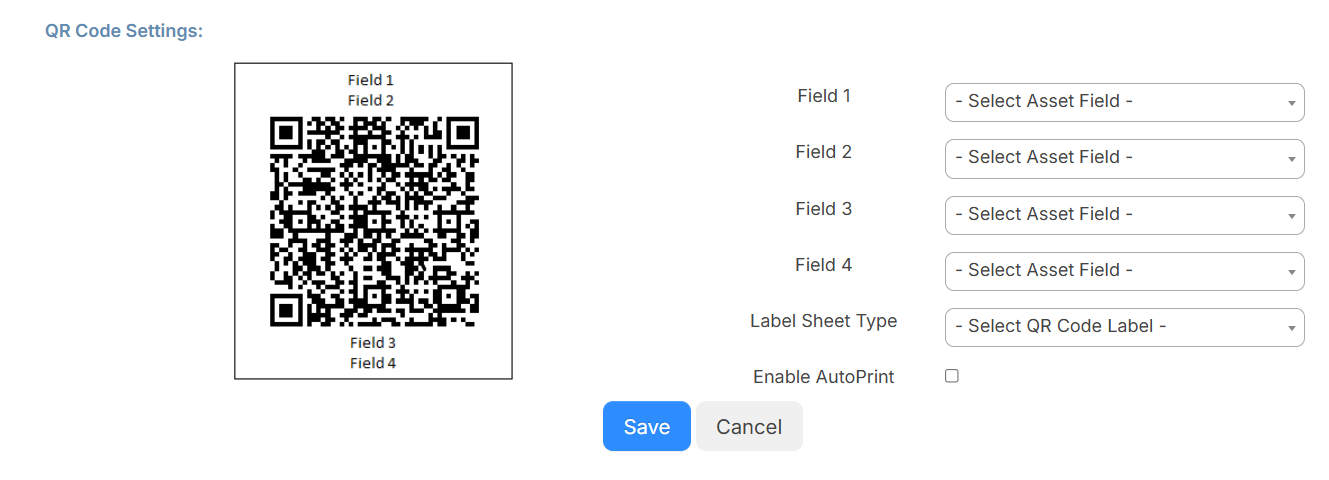
- Do the following:
- Use the top four drop-downs to select the fields you want to appear in the QR code.
- Use the next drop-down to select the Label Sheet Type.
- If you want the report to Enable AutoPrint, select the checkbox.
- Click Save.
- Select Assets > QR Codes. The Manage Codes page appears.
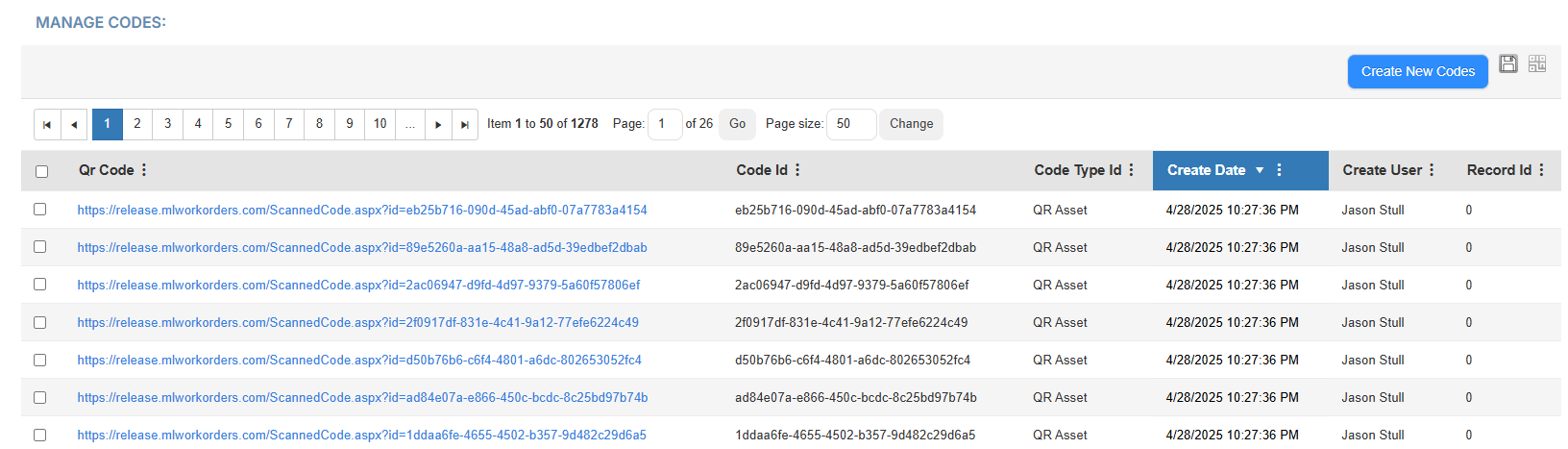
- Click Create New Codes. A pop-up appears.
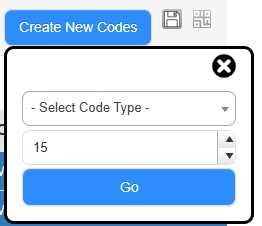
- Use the Select Code Type drop-down to choose the type of QR code.
- To set the number of QR codes to create, use the up and down arrows or enter a number.
- Click Go.