Manage roles and permissions
Roles and permissions determine what users can see and do. Each district can create custom roles, and assign the appropriate permissions. For example, a teacher can have permission to submit a request, but not approve or assign it.
You can add, edit, or view the history of a role. Also, assign permissions for requests, assets, inventory, preventive maintenance. and Knowledge Base articles.
To add a new role:
- Log in with an Administrator account.
- Select Users > Manage Roles.
- Click + Add Role.
- Enter a Role Name.
- If you want this user to assign requests, select what role(s) they Can Assign To.
- Under Permissions, select the checkboxes for the desired permissions.
Permission Users can... Add Inventory to WOs Add inventory items to requests. Approve on Behalf of Others Approve a request for another user.
Note: If a user has this permission and submits a request while on an approval path, the request will be pending approval. Approve WOs Approve requests. Assign WO to Others Assign work orders to others.
Note: If you select this permission, make sure you have the applicable role(s) selected in the Can Assign To drop-down in step 5 above.
Associate WOs with Project Assign a request to a project. Bypass Approval Users with this should see a checkbox labeled Require Approval on this Request above the Submit Request button. This checkbox is selected by default. If you deselect this, when users submit a request, it is automatically approved. Can Be Assigned WOs Be assigned work on requests. Can Submit Request on Behalf of Others Enter a request on behalf of another user. Cancel Work Order Cancel requests. Close WOs Officially close out a request, and be automatically notified of completed requests.
Complete WOs on Behalf of Others Complete requests that are assigned to other users. Edit WOs Edit request information. Enter Asset on WOs Link assets to requests. Enter Assigned Assets on WOs Link assets assigned to them to requests. Enter Budget Code on WOs Enter budget code information on requests. Enter Labor And Purchases on WOs Enter labor hours and purchase information on requests. Enter Purpose on WOs Enter a purpose for requests. Manage Projects Manage projects within the system. Reroute Work Order Re-route requests for additional approval. Submit Work Order Submit requests. View All WOs View all requests at a specific building. View Labor And Purchases Report Access the Request Labor and Purchase reports. View WO Report Access the Requests report. Preventative maintenance permissions
Permission Users can... Manage PMs Add or edit preventative maintenance schedules. View PMs View preventative maintenance schedules. Permission Users can... Add Asset Add an asset. Can Import Assets Import assets from a spreadsheet. Delete Asset Delete assets. Edit Asset Edit all asset information. Edit Asset Building Edit the Building field on an asset. Edit Asset Name Edit the Name field on an asset, Edit Asset Space Edit the Space field on an asset. Edit Assigned User Edit the Assigned User field on an asset. Edit Barcode Edit the Barcode field on an asset. Edit Serial Number Edit the Serial Number field on an asset. Inactivate Asset Inactivate an asset. View Assets View assets. View Binders View any Binders associated with the asset.
Note: Must have a Facilities Binders subscription. View Drawings View any Drawings associated with an asset on the asset details page.
Note: Must have a Facilities Drawings subscription. Permission Users can... Add Inventory Add inventory items to IT Asset Manager. Approve Inventory Requests on Behalf of Others Approve inventory requests for another user. Can Be Assigned Inventory Requests Be assigned work on inventory requests. Complete Inventory Requests on Behalf of Others Complete inventory requests, even if the request is assigned to another user. Edit Inventory Edit or adjust inventory items. Request Inventory Submit inventory requests. View Inventory View inventory, but not make any edits. View Inventory Reports Access inventory reports. View Inventory Requests View inventory requests associated with their building, but not make any edits. Charge permissions
Permission Users can... Manage Charges Add, edit, and delete charges. View Charges View charges. Permission Users can... Manage Knowledge Base Articles Browse and read published articles based on the assigned asset type and request type restrictions for their role. View Knowledge Base Articles Create, edit, delete, and update article status. - Click Save.
- Log in with an Administrator account.
- Select Users > Manage Roles.
- On the role you want to edit, click
 .
. - Make any desired edits.
- Click Save.
- Select Users > Manage Roles.
- On the role you want, click .
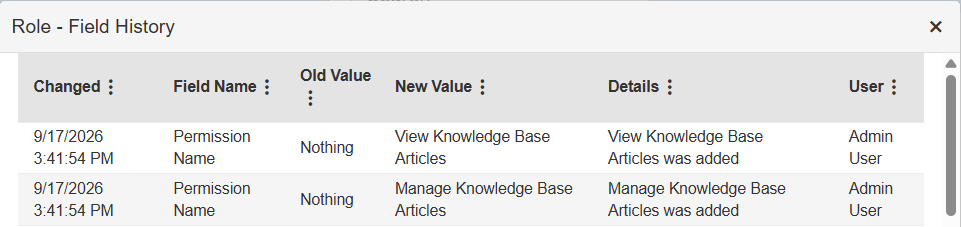
- At the top-right of the page, click View History. A pop-up appears.