Submit a request in single-form view
Although walk-through mode is the default for submitting a request, your district may use the single-form page instead.
To submit a request in single-form view:
- Do one of the following:
- Select Requests > Submit Request, and then choose the request type. The Request page appears.
- In the top-right corner of any page, select New Request, and then choose the request type.
Notes:
The New Request screen will vary, depending on how your district has set up requests.
Some request types may use walk-through mode instead of the single-form page.
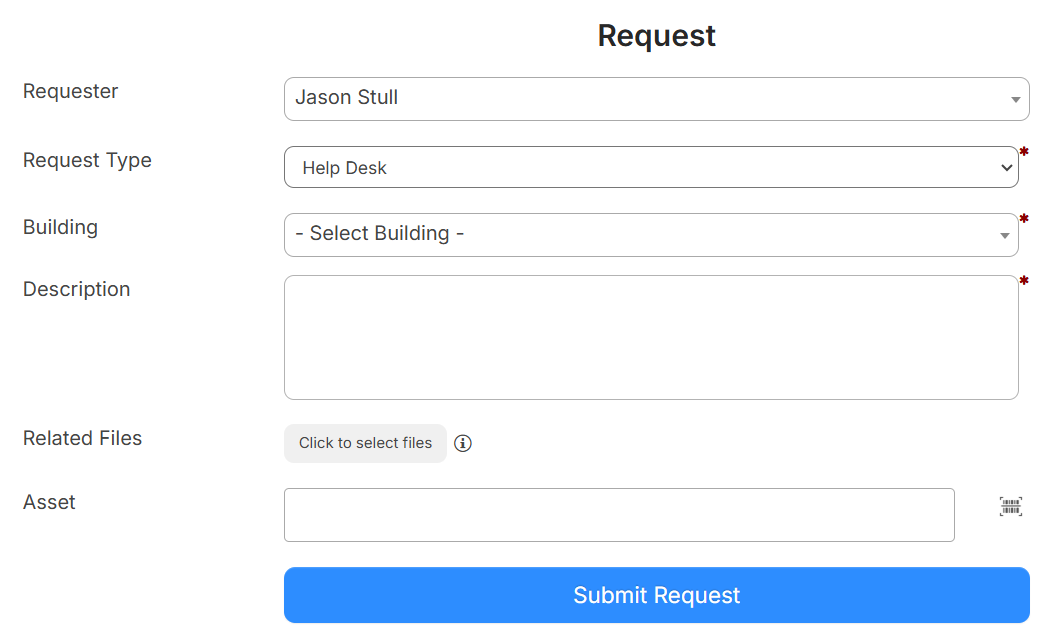
- Do the following:
- Select who the request is for.
Notes:
- Your name is the default.
- If you have the Can Submit Request on Behalf of Others permission, use the drop-down to select the user this request is for.
- Select the Building, Space, and Specific Room/Area.
- Enter the Asset(s) this request applies to (if any).
- Enter a Description.
- If any Suggested articles appear, click a link to open an article in a new tab.
Note: Users with the Manage Knowledge Base Articles permission can edit the article.
- Upload any desired files.
- If any custom or Additional Device Information fields appear, such as Space or Additionally Notify, fill in the information.
- Select who the request is for.
- Click Submit Request.