Put a request on hold
With the Approve Requests, Approve on Behalf of Others, or Can Be Assigned Requests permissions, you can put a request or a subtask on hold. You must choose whether the hold is permanent or for a set amount of time.
To put a request on hold from a request list page:
- Select Requests and then one of the following:
- My Requests
- My Open Assignments
- My Closed Assignments
- Open Requests
- Closed Requests
- View All Requests
- Find a request by searching or using a filter(s).
Note: To view all requests, in the column of your choice, click . In the filter () section, select Check All, and then click Filter.
- In the Status column of the request you want to update, click the current status. The Status pop-up appears.
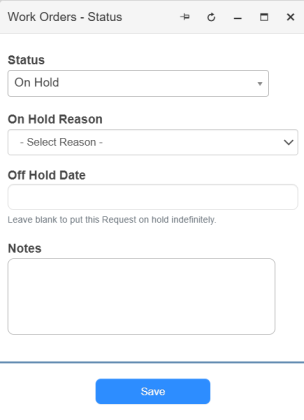
- From the Status drop-down, select On Hold.
- From the On Hold Reason drop-down, select the applicable reason.
- Do one of the following:
- To enter a date, click in the Off Hold Date field, and select a date from the calendar.
- To keep the hold in place until you remove it, leave the field blank.
- Add Notes.
- Click Save.
To put a request on hold from a request details page:
- Select Requests and then one of the following:
- My Requests
- My Open Assignments
- My Closed Assignments
- Open Requests
- Closed Requests
- View All Requests
- Find a request by searching or using a filter(s).
Note: To view all requests, in the column of your choice, click . In the filter () section, select Check All, and then click Filter.
- Click the Request ID for the request you want to update. The request details page appears.
- Click the status drop-down in the top-left corner and select On Hold.
- If a Notes Required pop-up appears, do the following:
- Enter a note.
- Select to send an email and if it should be internal only.
- Click Save.
- If prompted, select the applicable hold reason.
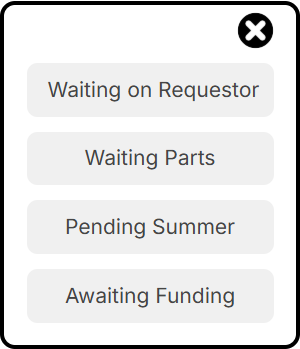
Note: Depending on the request status setting, you may not see this pop-up.
Another pop-up appears.
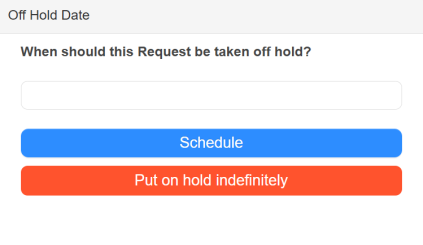
- Do one of the following:
- To schedule a date to automatically remove the hold:
- Click the blank field, and select a date from the calendar.
- Click Schedule.
Note: The request returns to its previous status on the scheduled date.
- To keep the hold in place until you remove it, click Put on hold indefinitely.
- To schedule a date to automatically remove the hold:
The request status changes to On Hold and might also display the reason.

To remove a hold, on the status button, select On Hold > Off Hold.