Run an Asset Depreciation Report
Users with the Edit Asset or View Asset role permission can run an Asset Report, which shows:
- Total accumulated depreciation value
- Total net book value
You can customize your view of this page.
To view the Asset Report, select Reports > Asset Report. The report defaults to today's date.
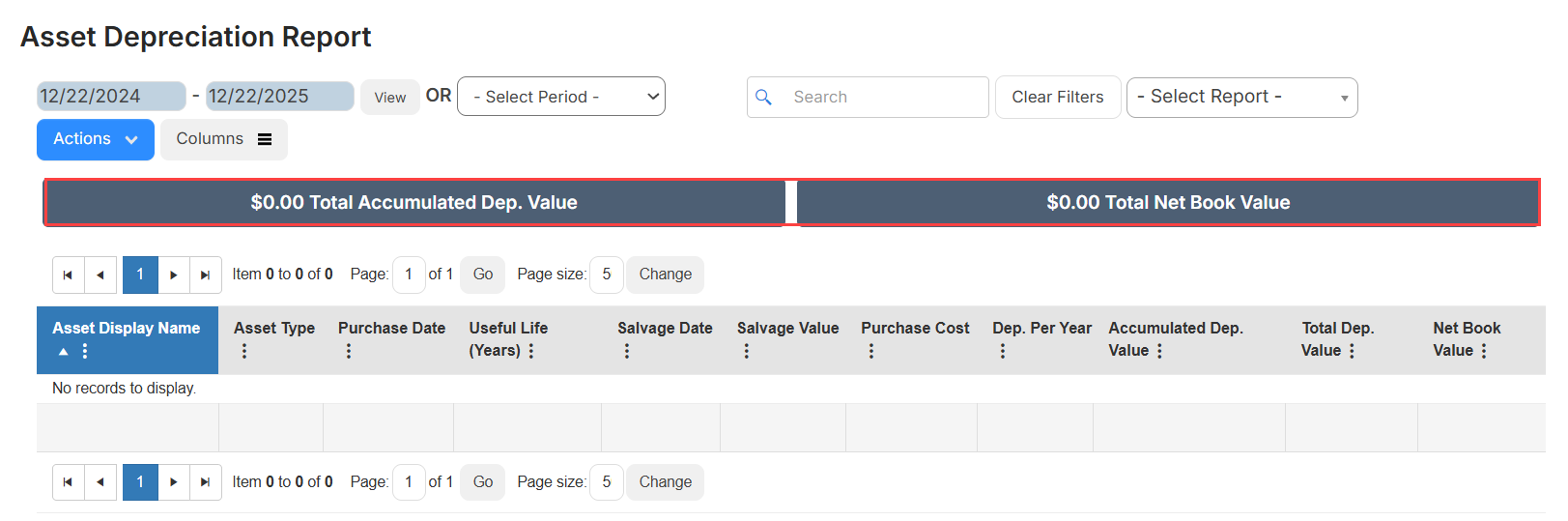
To target the data you want, do any of the following:
| To... | Then... | |
|---|---|---|
| Search |
|
|
| View a saved report | Use the Select Report drop-down to view a saved report. | |
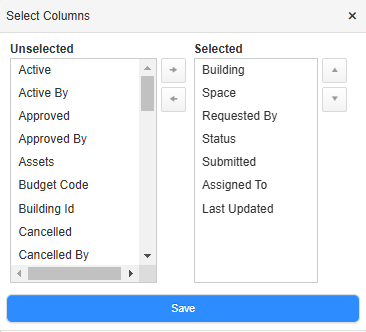
| Add or remove columns |
|
|
| Filter a column |
|
|
| Save the report |
After you select search criteria and filter:
|
|
| Print the report | Select Actions > Print PDF. The report appears in your Downloads folder. | |
| Export an Excel file | Select Actions > Export to Excel. The report appears in your Downloads folder. |
 .
.