Customize your view
Most pages allow you to customize your view, including searching for requests and inventory; filtering data; and adding or removing columns on a page.
| Important: The following image shows the All Requests page. The Request ID and Assign to Me do not appear on pages, such as Manage Users or View All PMs. |
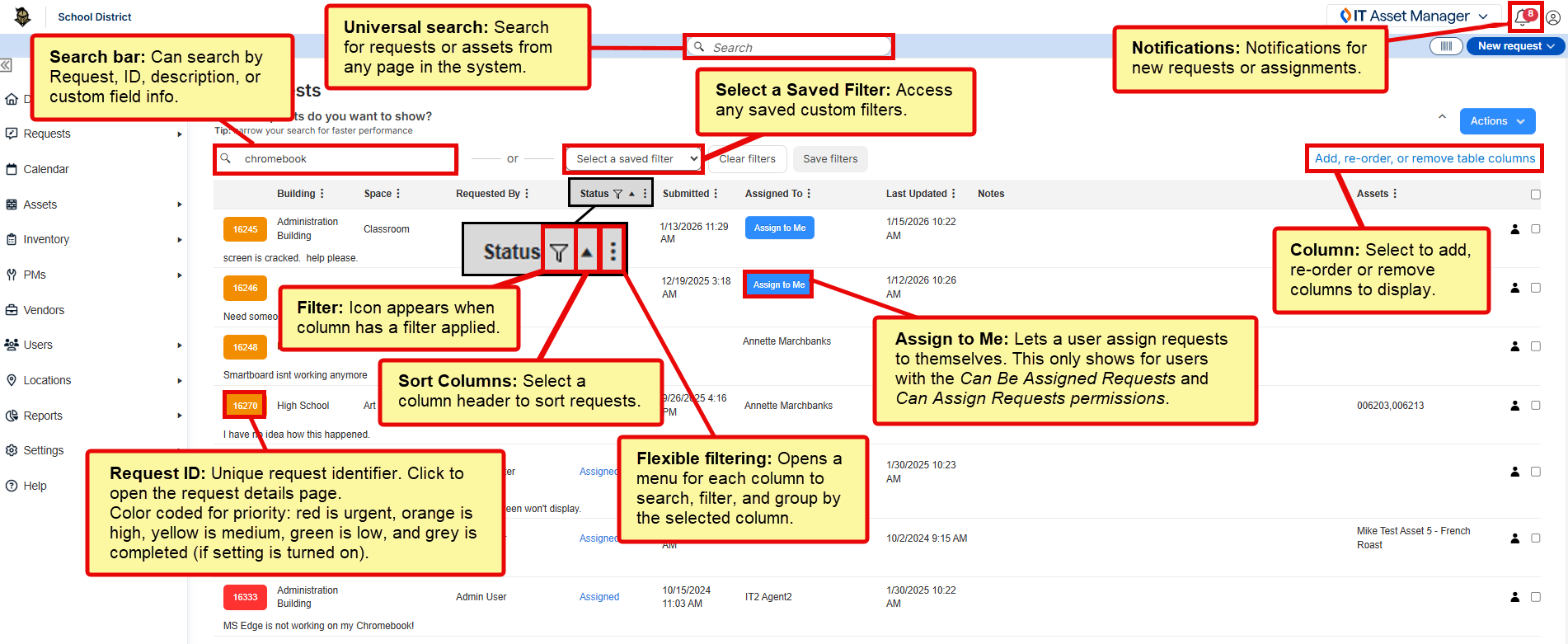
Search
Universal search is used to search for requests and inventory.
|
Note: Universal search checks the following fields:
|
Filters
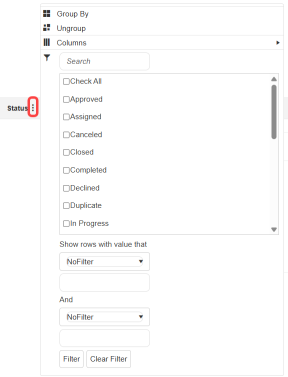
On customizable pages, you can sort, group, or filter data by column. Choose specific data to see by clicking the flexible filtering icon  .
. 
To sort, group, or filter data:
On a customizable page, click the applicable column.
Do one of the following:
- Click the filter icon
 to apply a filter.When a filter is applied, a filter icon appears in the column header.
 - Click the flexible filtering icon
 , and then select the data you want to display.
 - Click the flexible filtering icon, select Sort Ascending or Sort Descending, and then click Filter at the bottom of the pop-up.
After you add filters, you can save them for that page. Filters are page-specific.
| Important: Pages save your most recent filters to create a customized view, even if you change pages or log out. |
To save filter settings:
- Set any filters and columns you want.
- Select Actions > Add New Saved Filter.
- Enter a name.
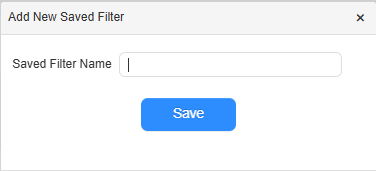
- Click Save.
After you save a filter, the page updates and uses that filter. The filter is available from the Select Saved Filter drop-down.
Columns
You can add or remove the columns that appear on a page.
| Note: All custom fields for requests are available as selectable columns. |
Do one of the following:
- Click Add, re-order, or remove table columns. The Select Columns pop-up appears. Make your selections, and click Save.
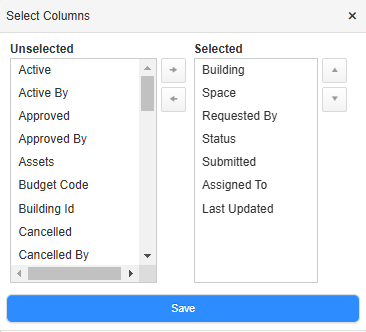
- In a column, click the flexible filtering icon, and then next to Columns, click the column selector icon. This option lets you select and deselect columns, but not change their order.