User details page
The user details page lets you see a user's information, including their role and request submission history.
You must be an Administrator with either View User Details or Manage Users and Permissions administrative permission to access this page.
To access the user details page:
- Log in with an Administrator account.
- Select Users > Manage Users.
- From the Name column, select the name of the user you want to view.
To navigate the user details:
The user summary provides high-level information and quick access to actions you can take for the user you are viewing.
- The Roles tab has the following sections:
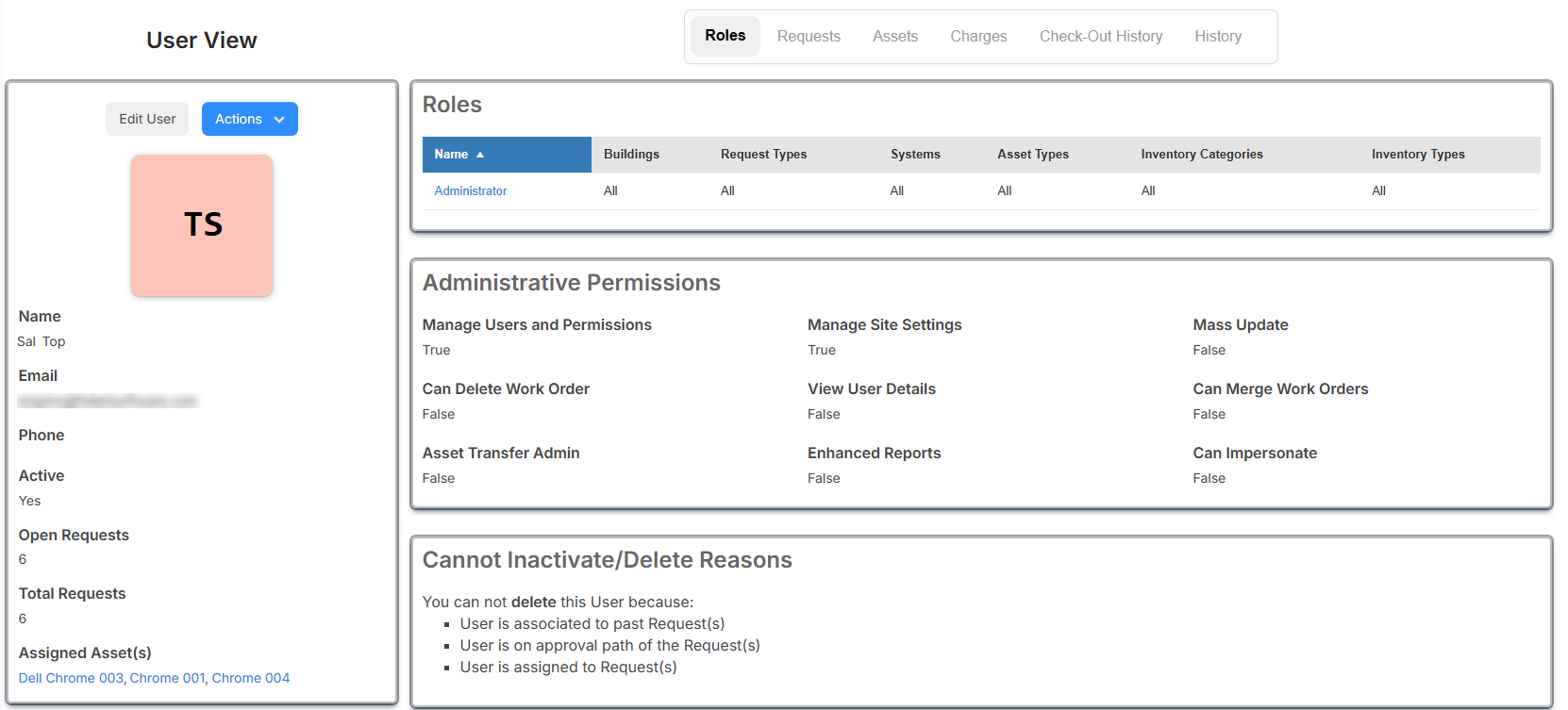
- User Details: See at-a-glance information about the user.
- Edit User: Lets an administrator user with the Manage Users and Permissions permission make updates to the record.
- Actions drop-down includes the following tasks:
To... Then... Submit Request The new request page appears. Check-Out Asset(s) The Asset Check-Out page appears.
- Choose how to search for the asset.
- Type or scan the asset's barcode.
- Select the checkbox to include Check-Out Component Assets.
- If the Check-Out Date is not the default of today's date, either type or use
 to select the date.
 - Enter a Due Date or use the .
Note: If you manually enter a date and circulation rules are set for the asset being checked out, the applicable rule will override the due date.
- Enter any Notes.
- Select the checkbox to Send Confirmation Email.
- Click Check-Out.
Send Welcome Email A pop-up message appears letting you know a welcome E-mail was sent.
Replace User - Use the drop-down to select the replacement user.
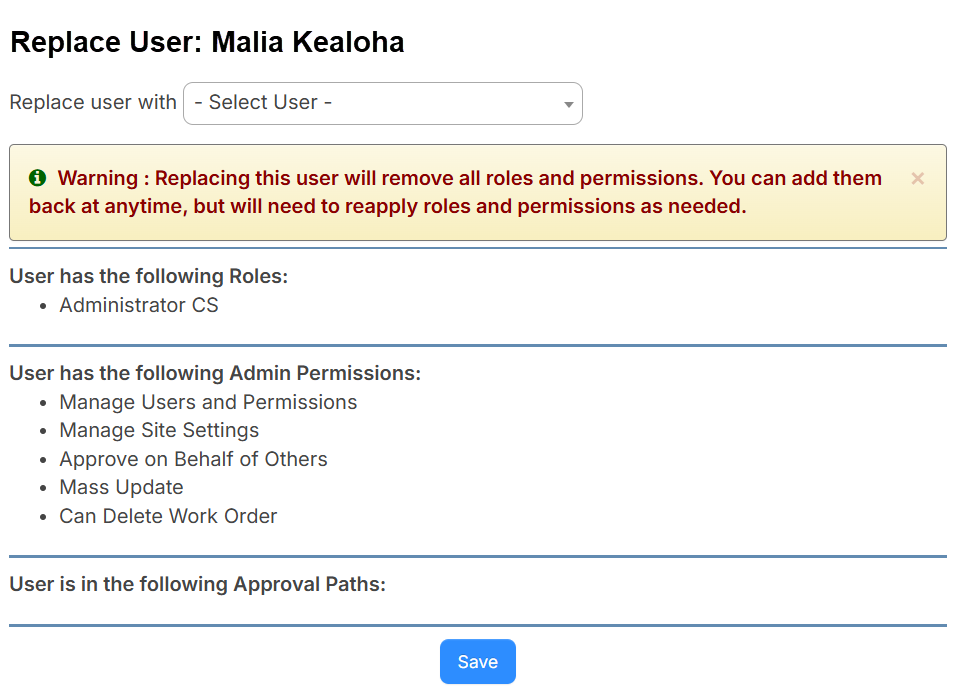
- Click Save.
Inactivate User A pop-up confirmation message appears. Click Yes to inactivate the user.
Delete User A pop-up confirmation message appears. Click Yes to delete the user.
- Roles: See all the roles assigned to the user. Clicking a role will let you manage the permissions for that role.
- Administrative Permission: See the administrative permissions the user has, indicated by True, and those they do not, indicated by False.
- Cannot Inactivate/Delete Reasons: Lists reasons why you cannot inactivate or delete a user.
- User Details: See at-a-glance information about the user.
- The Requests tab shows Open, Closed, and All Requests, including requests submitted by or on behalf of the user.
- You can print PDFs of requests.
Note: The request content that appears is based on the logged-in user's role and permissions.
- The Assets tab shows assets assigned to the user. This tab appears only for a user with either the View Asset or Edit Asset permission.
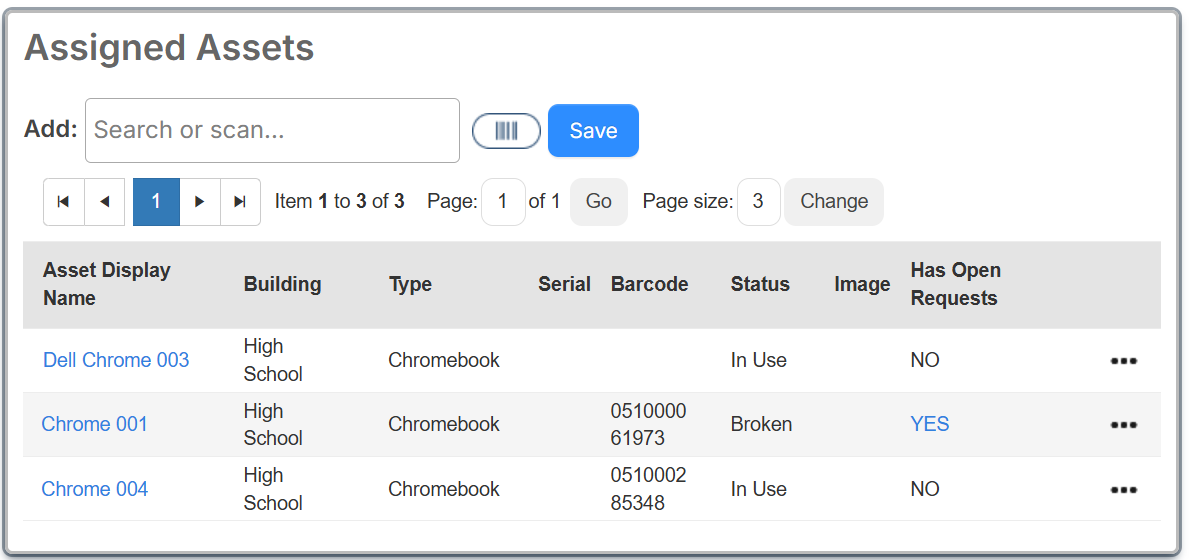
- To access the asset's details page, in the Asset Display Name column, click the asset link.
- If the asset Has Open Requests, click Yes to go to the request details page.
- Click
 to do one of the following:
To... Then... Submit Request The new request page appears. Check-In The Asset Check-In pop-up appears.
- Select the checkbox to include Check-In Component Assets.
- To change the asset's location, select the new location from the Change Space drop-down.
- If the Return Date is not the default of today's date, either type or use to select the date.
- Enter any Notes.
- Select the checkbox to Send Confirmation Email.
- Click Check-In.
- To assign an asset to the user you are viewing, in the Add field, type the asset's barcode or name, and then select it from the list. Or, use
 to scan the barcode. Click Save.
 Note: You need the Edit Assigned User asset permission on the asset to assign it.
- The Charges tab appears if you have either the Manage Charges or View Charges permission.
- The Check Out History tab appears if you have either View Asset or Edit Asset permission. This page shows a log of all current or previously assigned assets. The Asset Display Name link takes you to the asset record detail page.
- The History tab appears if you have the Manage Users and Permissions administrative permission. Use this tab to track all changes that occurred on the user account, including who, what, and when a change was made. You will see updates made to the role, fields, and administrative permissions.