Add or edit a user
You can add a new or edit an existing user on the Manage Users page.
- Log in with an Administrator account.
- Select Users > Manage Users.
- Do one of the following:
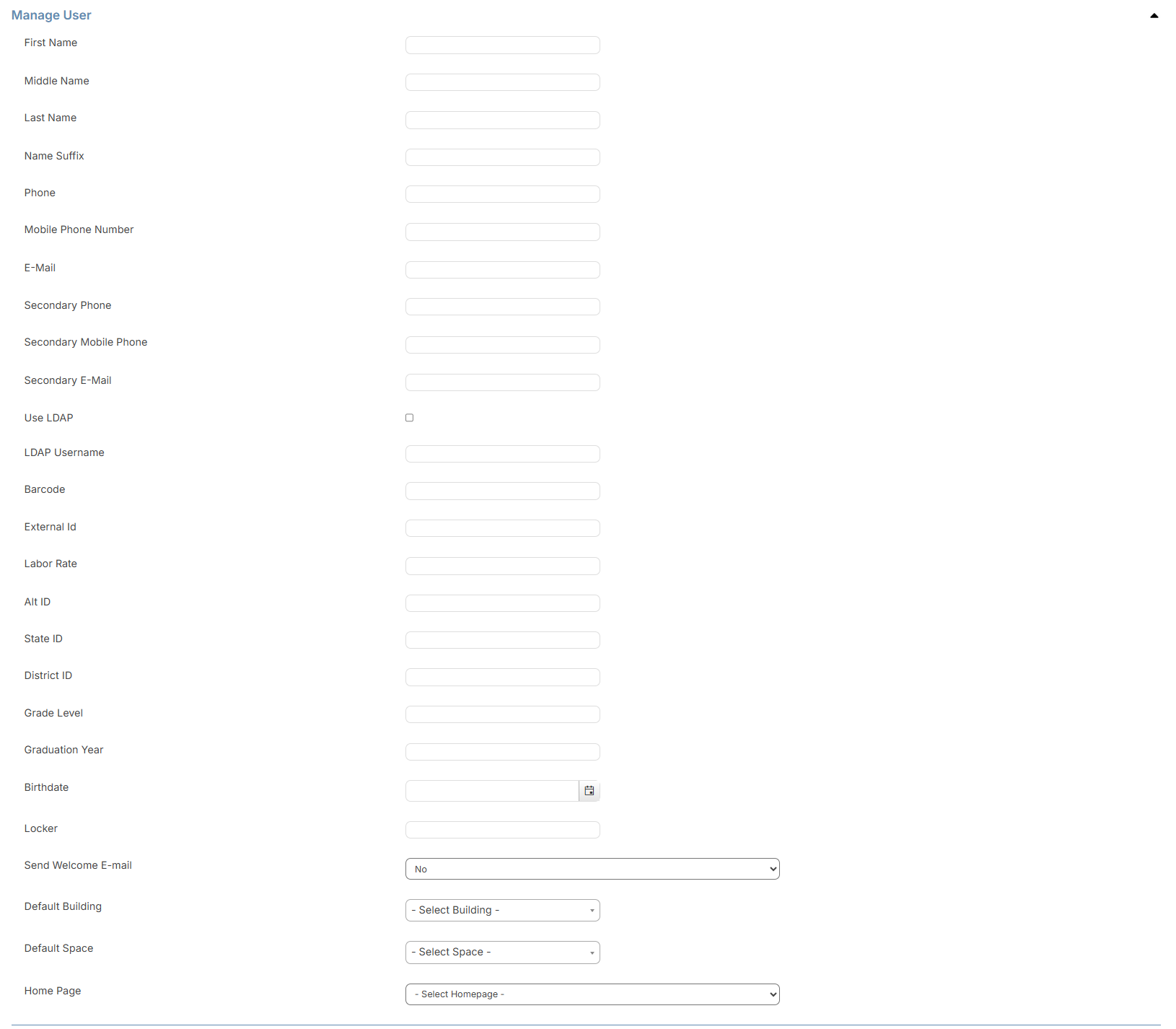
- Select Actions > Add User. The Manage User page appears.
- In the row of user you want to edit, click
 .
.
- Select Actions > Add User. The Manage User page appears.
- In the Manage User section, do the following:
Note: To ensure accurate records, complete as many fields as possible.
- Complete the First Name, Last Name, Phone, and E-Mail fields.
- To enable LDAP, select the Use LDAP checkbox.
- Enter the LDAP Username in the field, if known.
- Enter a Barcode for the user.
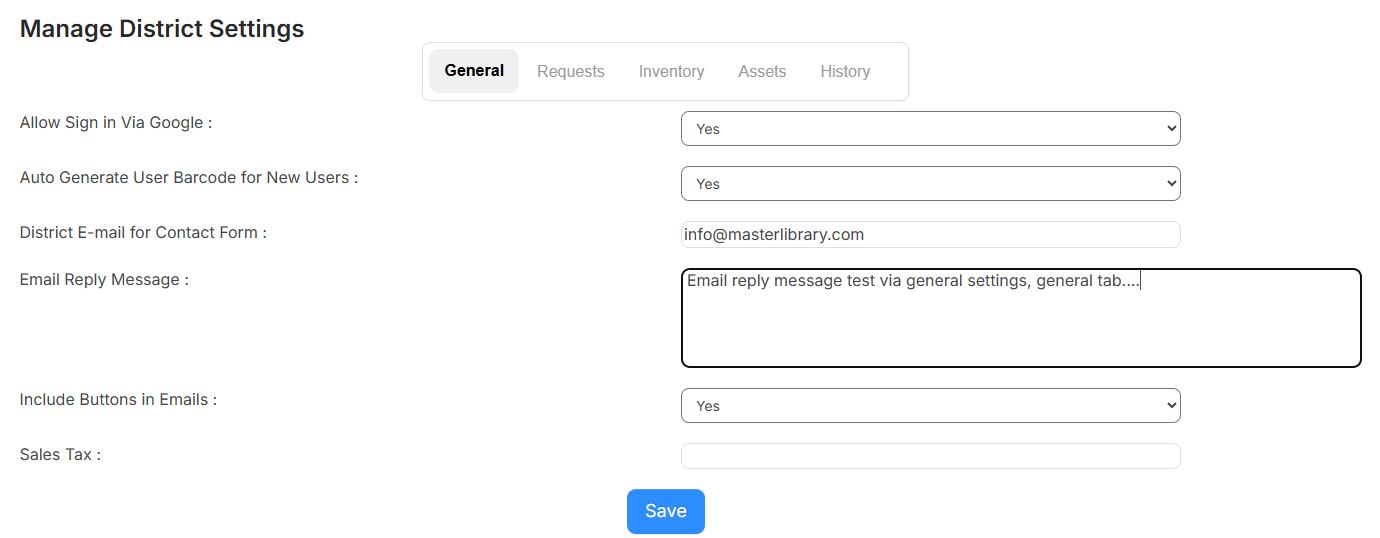
Note: If the Auto Generate User Barcode for New Users setting (in General Settings) is turned on, you can leave this field blank and it populates automatically. Auto-generated barcodes are 10 characters, start with a 3, and can contain numbers, uppercase letters, and the following characters: minus (-), plus (+), period (.), dollar sign ($), slash (/), and percent (%).
- In the External Id field, enter it manually or sync it from the following single sign-on options:
- Google SSO: EmployeeID field from Google
- SAML Google: EmployeeID field from SAML Google
- SAML Azure: EmployeeID field from SAML Azure
- SAML Okta: EmployeeNumber from SAML Okta
- In the Labor Rate field, enter the user's hourly labor rate.
- To Send Welcome E-mail, select Yes from the drop-down.
- Select a Default Building.
- Select a Default Space.
- To send asset overdue and due-date reminders and charge notifications to a parent or guardian, enter the emails, separated by a comma, in the Additional Email Addresses for Asset Circulation and Charges field.
Notes:
- When this field is populated, emails are sent automatically for assets due that day, upcoming, or overdue.
- The Send Confirmation Email checkbox in circulation must be selected to generate a notification when assets are checked out or in.
- To send an email notification when a charge is created or updated – manually, during asset check-in, from request inventory, or from circulation-rule late fees – the Charge Notification Emails setting must be set to Yes.
- Select a Home Page.
- In the Addresses section, do the following:

- Click + Add Address. The Add Address pop-up appears.
- Complete all applicable fields.
- If this is the main address for the user, select Primary Address.
- Click Add.
- Add secondary addresses as needed.
- In the Roles section, do the following:

- Click + Add Role.
- Select the applicable role from the drop-down.
- Use the Building, Request Types, Systems, Asset Types, Inventory Categories, and Inventory Types multi-select drop-downs to select applicable data.
- Click
 .
.
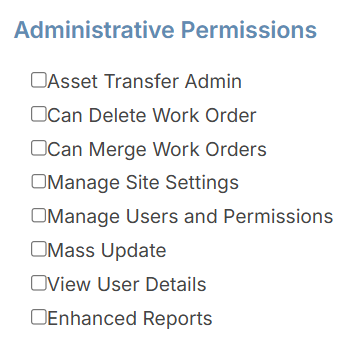
- Select which Administrative Permissions you want the user to have.
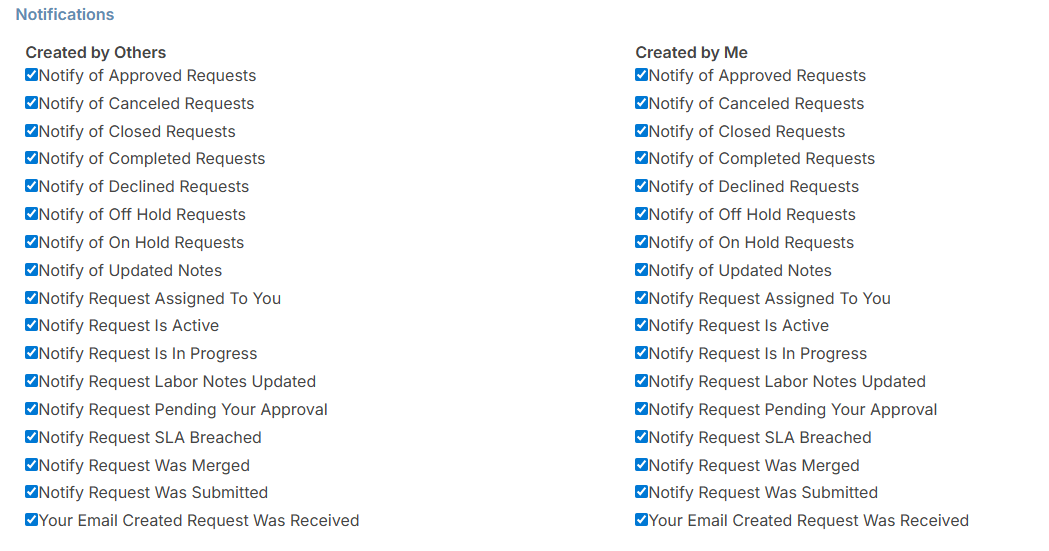
- Select which email Notifications you want the user to have.
- Click Save.
|
Note: If you add the Create Method column to the Manage Users page, the column shows when a user is created in any of the following ways:
Users added after the 25.6 release will show the create method. Users created prior to 25.6 will show N/A in the column. |