Actions for Google MDM devices
The MDM Actions button lets you manage assets synced from Google MDM directly from the asset's details page in IT Asset Manager. You can disable, deprovision, or re-enable a supported device without opening the Google Admin console.
If the asset is not synced from Google MDM, or you do not have the Edit Assets permission, the MDM Actions button does not appear.
To disable, deprovision, or re-enable a synced asset:
- Select Assets > View All Assets or View All Assets (all fields).
- Find an asset by searching or using a filter(s).
Note: To view all assets, in the column of your choice, click
 . In the filter (
 ) section, select Check All, and then click Filter.
 - Click the name of the asset you want. The asset's details page appears.
- At the bottom of the page, click MDM Actions.
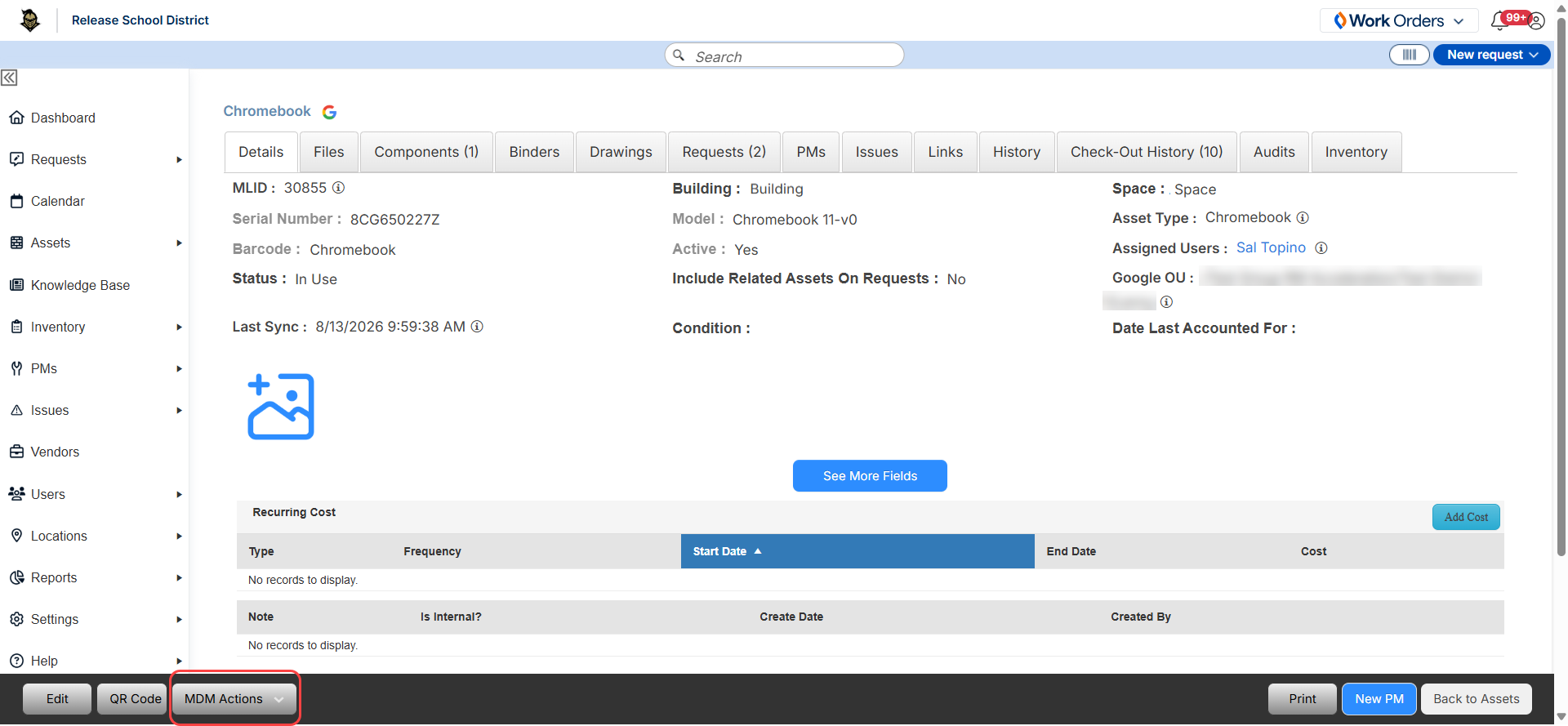
- Select one of the following actions:
- Disable an enabled device.
- Deprovision a provisioned device.
- Re-enable a disabled device.
Note: Only the actions supported for the device's current state appear in the menu.
- On the confirmation pop-up, type the name of the action, and then click to confirm the action.
The command is sent immediately. The asset status is updated, and the action appears on the asset's History tab.