Integrate with Google MDM
If your district uses Google Workspace, you can connect IT Asset Manager to Google Workspace through the Google MDM integration to sync device data. The integration does the following:
- Uses each Google device's serial number to uniquely identify the device.
- If it finds a matching serial number, updates the existing IT Asset Manager asset record with information from Google Workspace. If it does not find a match, creates a new asset record.
- Imports devices as Chromebook, Chromebox, or Chromebase asset types, based on the device model.
- Lets you manage synced devices from the asset's details page.
This is a three-step process:
- In Google API Console, create a service account.
- In Google Admin, configure domain-wide delegation for the service account.
- In IT Asset Manager, configure the Google Device integration by completing the following tabs:
Users with the Manage Users and Permissions user permission can set up the integration.
|
Important: Because this procedure requires technical knowledge, your district's IT administrator will most likely need to complete it. |
Step 1: In Google API Console, create a service account
- Go to the Google API Console.
- To create a project:
- Click New Project.
- Name the project IT Asset Manager SSO.
- Click Create.
- To set up the service account, do the following:
- From the Select a project drop-down at the top of the page, select the project you created.
- On the left side-menu, select Library.
- In the Find field, type Admin SDK and select it from the search results.
- Select ENABLE.
- From the navigation menu, select APIs & Services > Credentials.
- Click + Create Credentials, and then Service Account.
- Enter a Service account name and, optionally, Service account description.
- Select Create, Continue, and then Done.
- Click the Email link.
- Select ADD KEY > Create new key. On the pop-up, ensure that JSON is selected (this is the default).
- Click CREATE. A JSON file is downloaded to your computer.
- Select Close, and then Save.
Keep the JSON file available. You will need it to configure the integration in IT Asset Manager.
Step 2: Enable domain-wide delegation for the service account
|
Notes:
|
- Open a new browser window and go to https://admin.google.com/ac/owl.
- Select MANAGE DOMAIN-WIDE DELEGATION.
- Click Add new.
- Open the JSON file that you downloaded, and copy the value for client_id.
- In the pop-up window, paste the client ID and enter one scope on each line.
Important: You must enter the following scopes:
- https://www.googleapis.com/auth/admin.directory.device.chromeos
- https://www.googleapis.com/auth/admin.directory.device.chromeos.readonly
- https://www.googleapis.com/auth/admin.directory.orgunit
- https://www.googleapis.com/auth/admin.directory.orgunit.readonly
- Click AUTHORIZE to save the changes.
Step 3: Configure the Google Device integration
In ITAM, select Settings > Integrations > Google Device Integration.
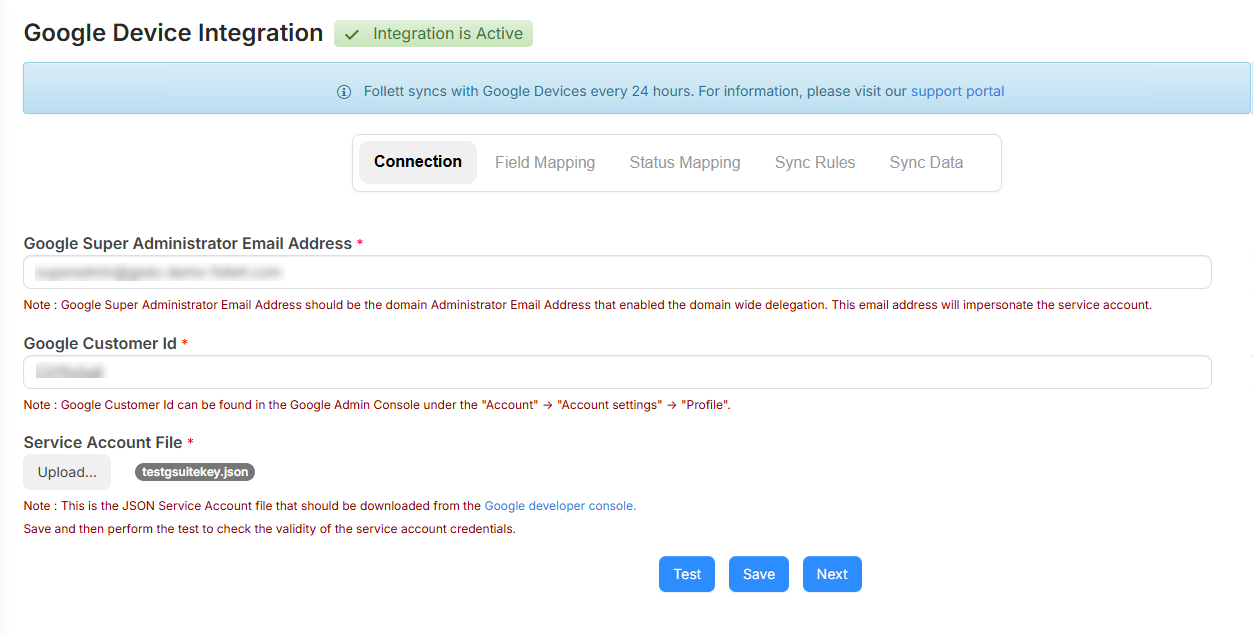
Use the Connection tab to enter information from your Google account.
To set up a link to Google Device:
- Enter your Google Super Administrator Email Address.
- Enter your Google Customer Id.
- Upload the Service Account JSON file.
- Click Save.
- When prompted, click Test to verify the service account credentials.
Note: When the integration is active, a green banner appears in the top-left corner of the page.
-
Click Next to go to the Field Mapping tab.
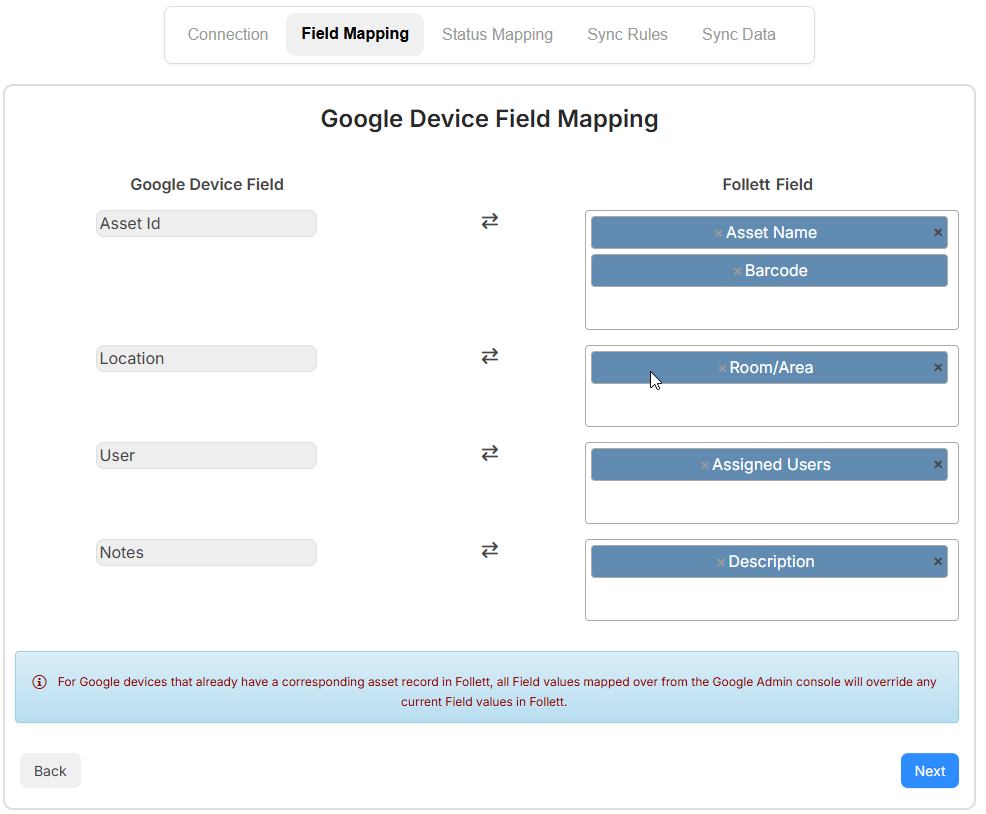
Use the Field Mapping tab to map the Google device Asset ID, Location, User, and Notes fields to a defined set of IT Asset Manager fields.
Field mapping is optional, but it can be useful in the following situations:
- The assigned user for a device changes frequently in Google Workspace, and you want IT Asset Manager to reflect those changes.
- You want to use the Google device Asset ID in fields such as Asset Name or Barcode.
You cannot map more than one Google device field to the same IT Asset Manager field.
After you finish mapping fields, click Next to go to the Status Mapping tab.
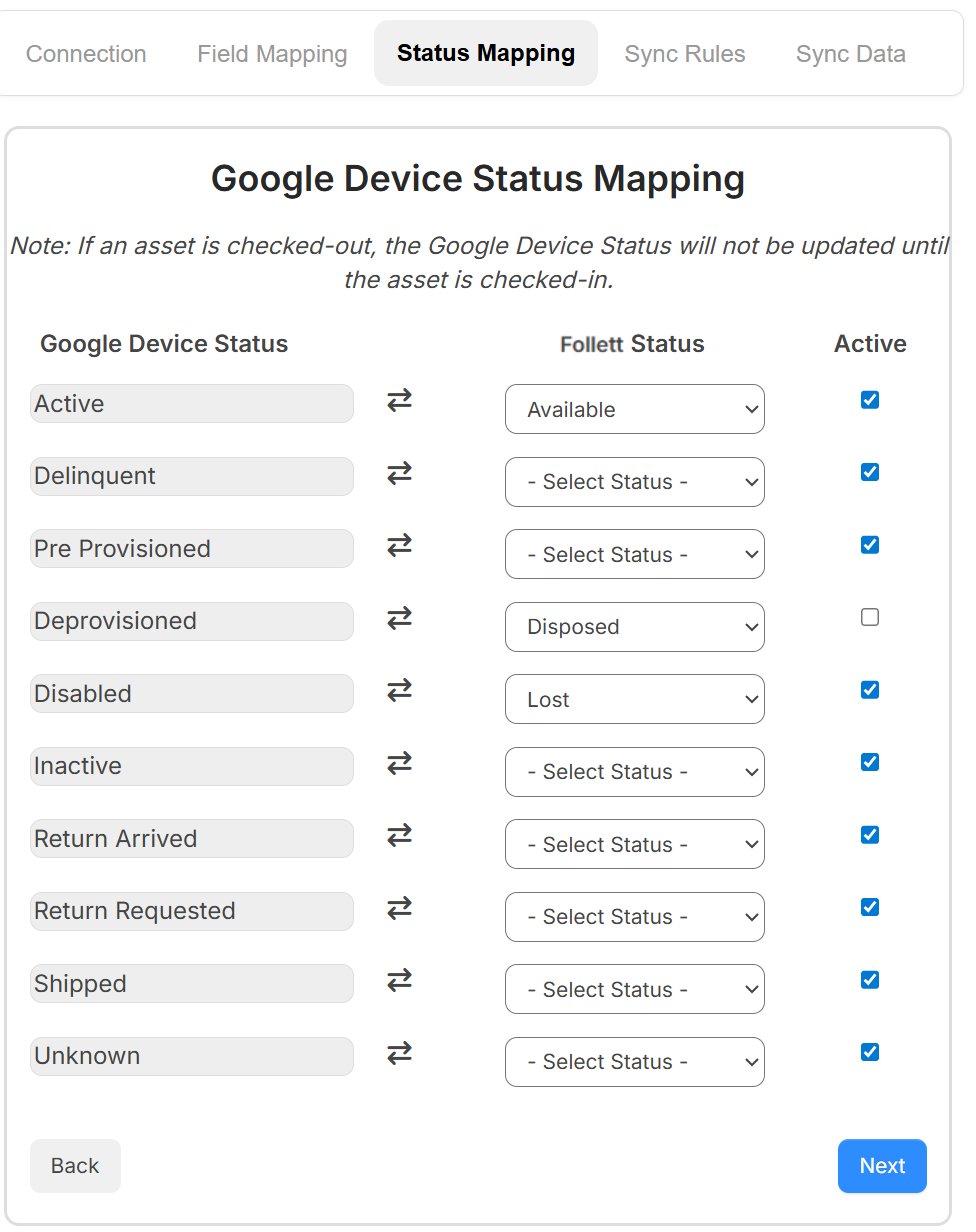
Use the Status Mapping tab to map Google device statuses to IT Asset Manager statuses. When a device status changes in Google Admin console, the mapped status is updated in IT Asset Manager.
To set up status mapping:
- For each Google device status that you want to map, use the drop-down to select the corresponding ITAM status.
- Each Google device status is Active by default. Deselect Active for a status if devices with that status should be inactive in IT Asset Manager.
- Click Next to go to the Sync Rules tab.
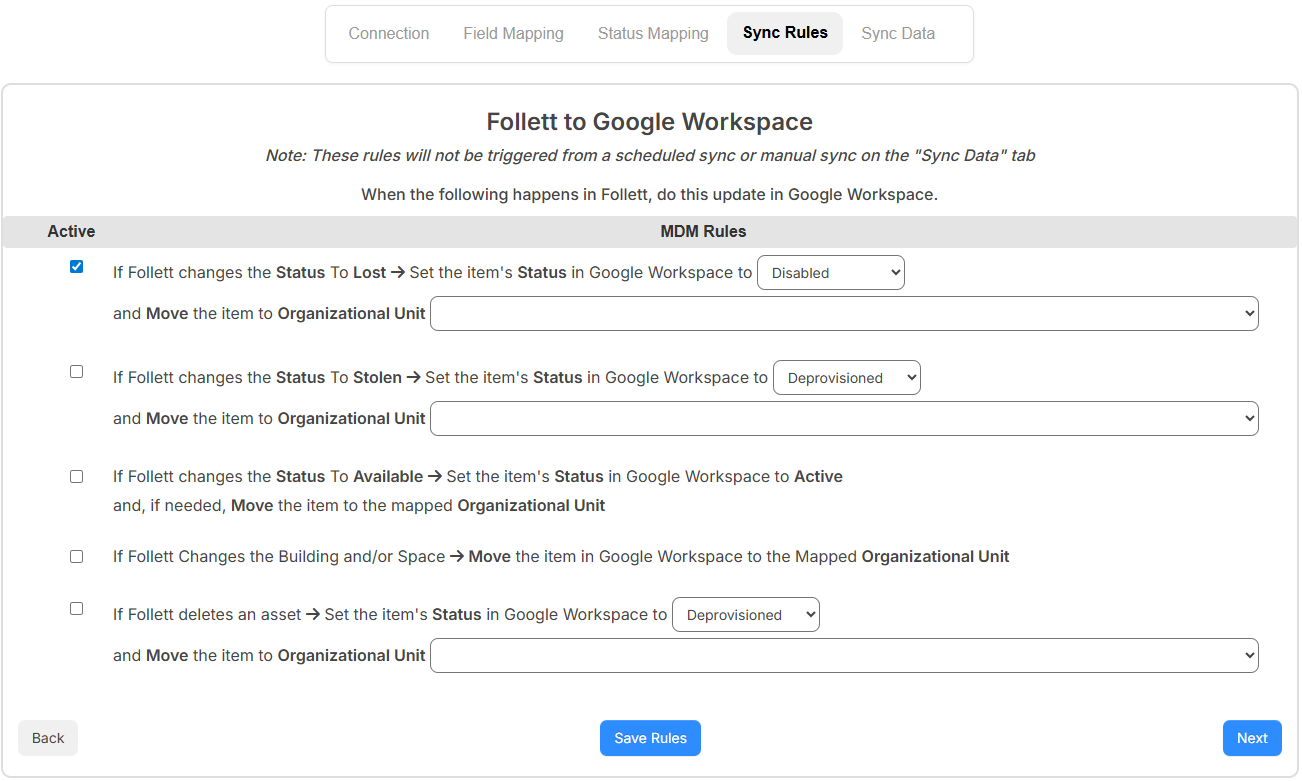
Use the Sync Rules tab to control how Google Workspace devices are updated when changes occur in IT Asset Manager.
To set up the sync rules:
- Select/deselect the If Follett changes the Status to Lost > Set the item's Status in Google Workspace to checkbox to enable/disable from syncing. From the drop-down, select one of the following:
- Don't Change
- Disabled
- Deprovisioned
- From the and Move the item to Organizational Unit drop-down, select Don't Move or the organizational unit.
- Select/deselect the If Follett changes the Status to Stolen > Set the item's Status in Google Workspace to checkbox to enable/disable from syncing. From the drop-down, select one of the following:
- Don't Change
- Disabled
- Deprovisioned
- From the and Move the item to Organizational Unit drop-down, select Don't Move or the organizational unit.
- Select/deselect theIf Follett changes the Status To Available > Set the item's Status in Google Workspace to Active and, if needed, Move the item to the mapped Organizational Unit checkbox to enable/disable from syncing.
-
Select/deselect the If Follett Changes the Building and/or Space > Move the item in Google Workspace to the Mapped Organizational Unit checkbox to enable/disable from syncing.
- Select/deselect the If Follett deletes an asset > Set the item's Status in Google Workspace to checkbox to enable/disable from syncing. From the drop-down, select one of the following:
- Don't Change
- Disabled
- Deprovisioned
- From the and Move the item to Organizational Unit drop-down, select Don't Move or the applicable building.
- Click Save Rules.
- Click Next to go to the Sync Rules for Google Changes tab.
Step 5: Sync Rules for Google Changes
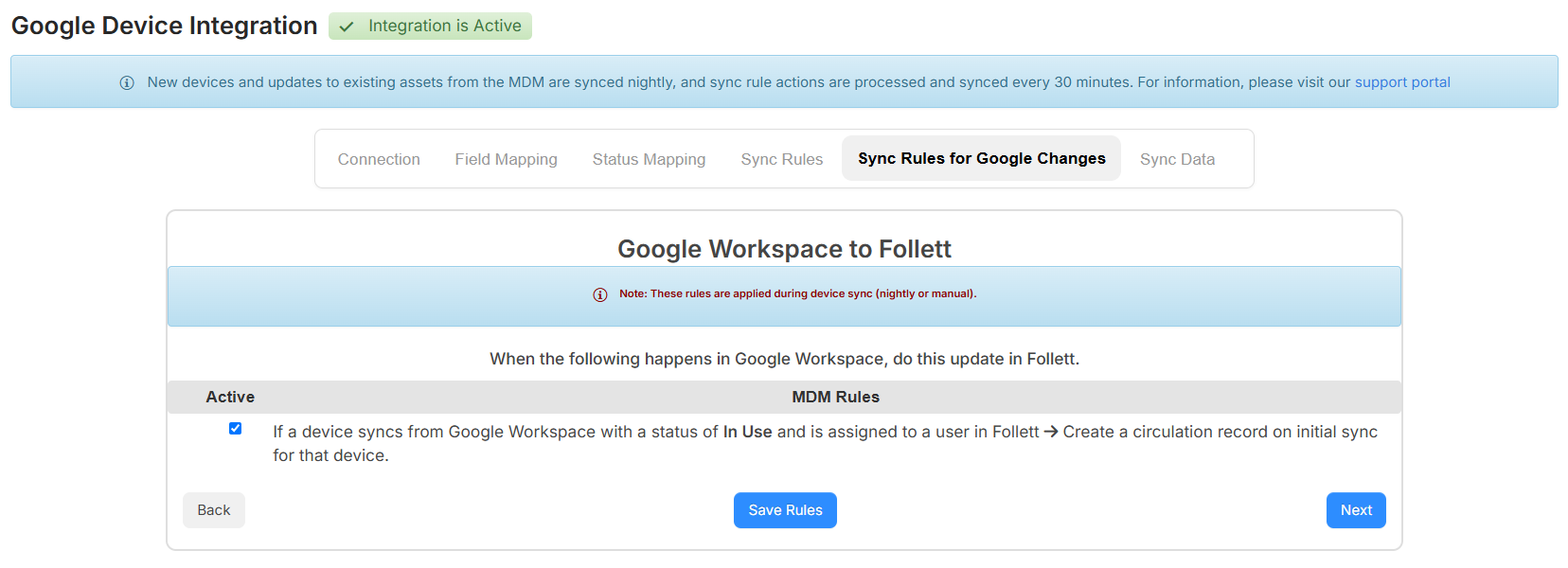
Use this tab to automatically create a circulation record in IT Asset Manager when a device syncs from Google Workspace with an In Use status and an assigned user.
To set up the Google changes sync rules:
- Select/deselect the If a device syncs from Google Workspace with a status of In Use and is assigned to a user in Follett -> create a circulation record on initial sync for that device checkbox to enable/disable from syncing.
Note: When enabled, the check-out date uses the device’s assigned-to date when one is available. If no assigned-to date is available, the current date is used. The due date uses the applicable circulation rule. If no circulation rule applies, the due date remains blank.
- Click Save Rules.
- Click Next to go to the Sync Data tab.

Use the Sync Data tab to sync Google devices into ITAM by organizational unit (OU).
To add organizational units:
- Click + Add OU. The Manage Organizational Unit (OU) pop-up appears.
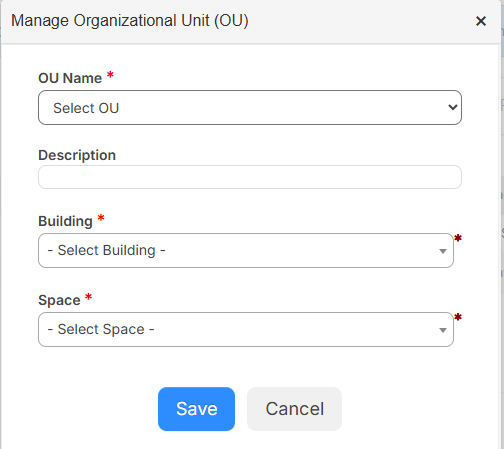
- From the OU drop-down, select the exact OU name as it appears in the Google Admin console.
- Enter a Description for the OU.
- Select a Building and Space for the devices in this OU.
- Click Save.
- Click OK.
- To initiate a sync for the group, click
 .
. - When the sync is complete, a pop-up displays the total number of devices, updated devices, added devices, and devices that were not synced. Click OK.
|
Notes:
|