Manage buildings
By setting up buildings, you can auto-assign requests to specific users or teams at those buildings. You can also filter pages by building.
Add buildings to meet your district's needs. A building can be a school or district office. If an elementary and middle school are in the same building, you can either add one building for both, or add each as its own.
By setting up each school as a separate building, when a request notification is sent, only that school will receive the notification. You can also see data for each specific school.
Before users with the Manage Site Settings administrative permission can add, edit, inactivate, and delete buildings, they must add Campuses/Locations.
You can customize your view of this page.
To add a new building:
- Select Locations > Manage Buildings.
- Click + Add Building. The Manage Building page appears.
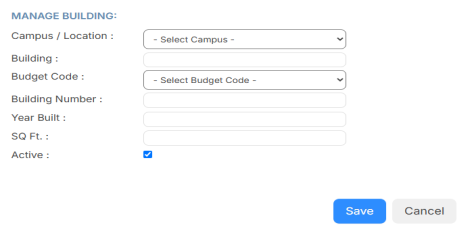
- Do any of the following:
- Select a Campus/Location.
- Enter the following:
- Building name
- Budget Code
- Building Number
- Year Built
- Square Footage
- To hide this building, deselect the Active checkbox.
- Click Save.
To edit or inactivate an existing building:
Note: Any changes made to buildings also affect Facilities Drawings. |
- Select Locations > Manage Buildings.
- Next to the building you want, click
 . The Manage Building page appears.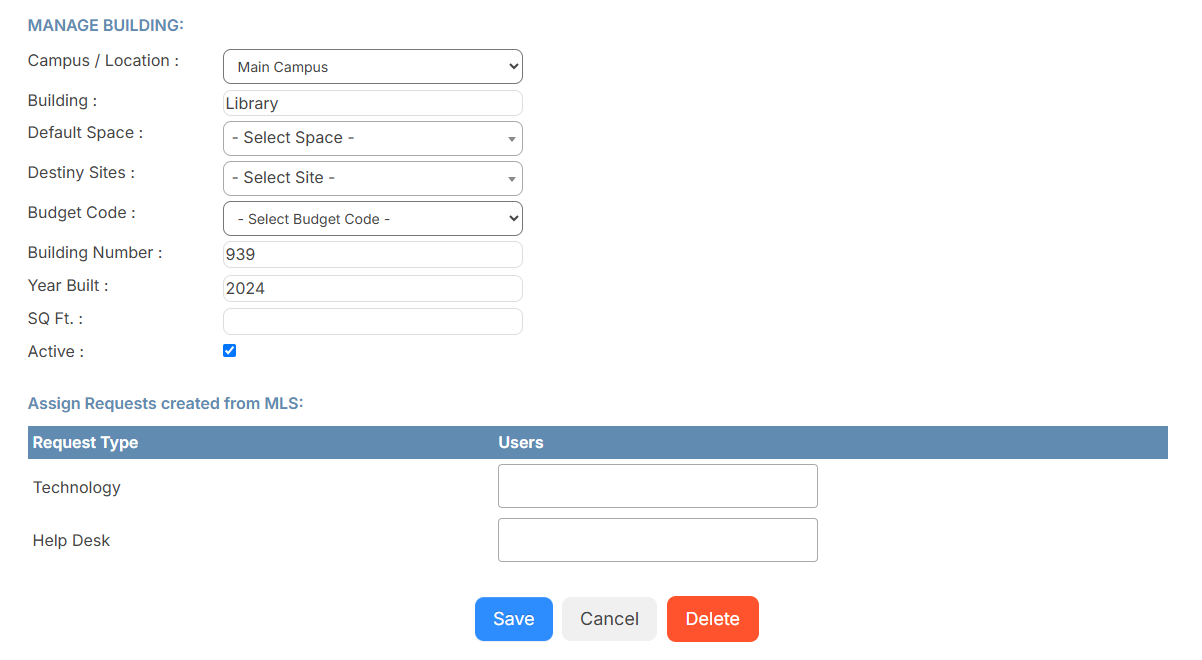
- Do any of the following:
To: Do the following: Edit the building - Make the desired edits.
Note: The Default Space field is required; however, it does not affect searching, so you can enter something generic.
- Click Save.
Inactivate the building
Note: Inactivating a building prevents it from being associated with new requests, but keeps past data. - Deselect the Active checkbox.
- Click Save.
Delete the building At the bottom of the page, click Delete.
Note: The Delete button only appears if there are no requests associated with this building. If there are past requests associated with this building, your only option is to inactivate the building.
- Make the desired edits.