Use the Knowledge Base
The Knowledge Base is an internal documentation hub where IT teams can create and manage solutions, standard procedures, and troubleshooting guides. Articles support rich text, images, and a variety of file types.
To create, edit, delete, and update articles, you need the Manage Knowledge Base Articles permission. Users with the View Knowledge Base Articles permission can browse and read published articles based on the asset types and request types assigned to them.
Before adding documents, an administrator should create article type categories.
View Knowledge Base articles
If you have read-only access to the Knowledge Base, you can search for and read published articles. The articles you see are filtered based on the assigned asset type and request type restrictions for your role.
To search for or view an article:
- Select Knowledge Base. The Knowledge Base articles page appears.
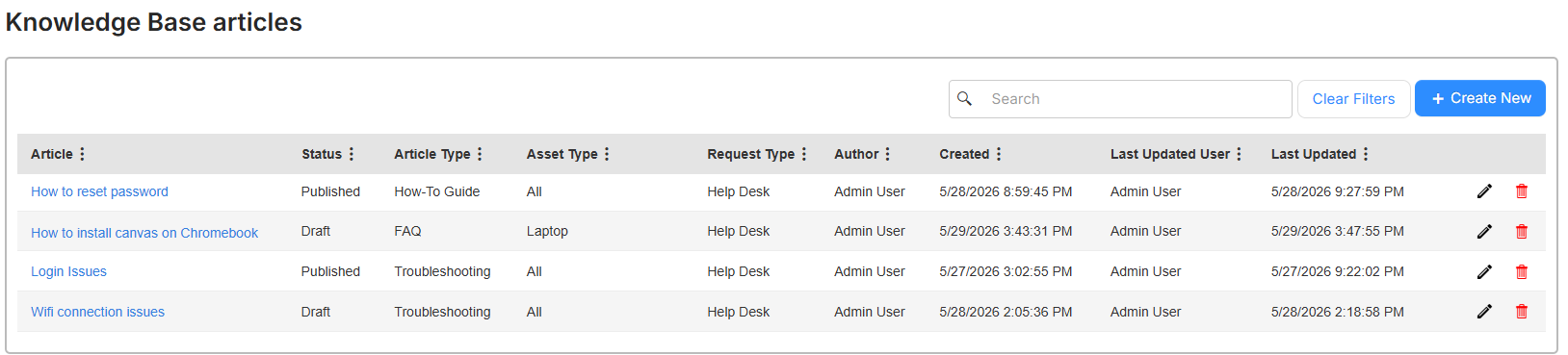
- To search by article name, type it in the Search field and press Enter or click
 .
. - To view an article, click its name in the Article column.
When you submit a request, you might see a 'Suggested articles' section on the submission form if the Suggest Knowledge Base Articles on Request Submission toggle is enabled for that request type. The section displays up to five published articles. If no articles match the criteria, the section does not appear.
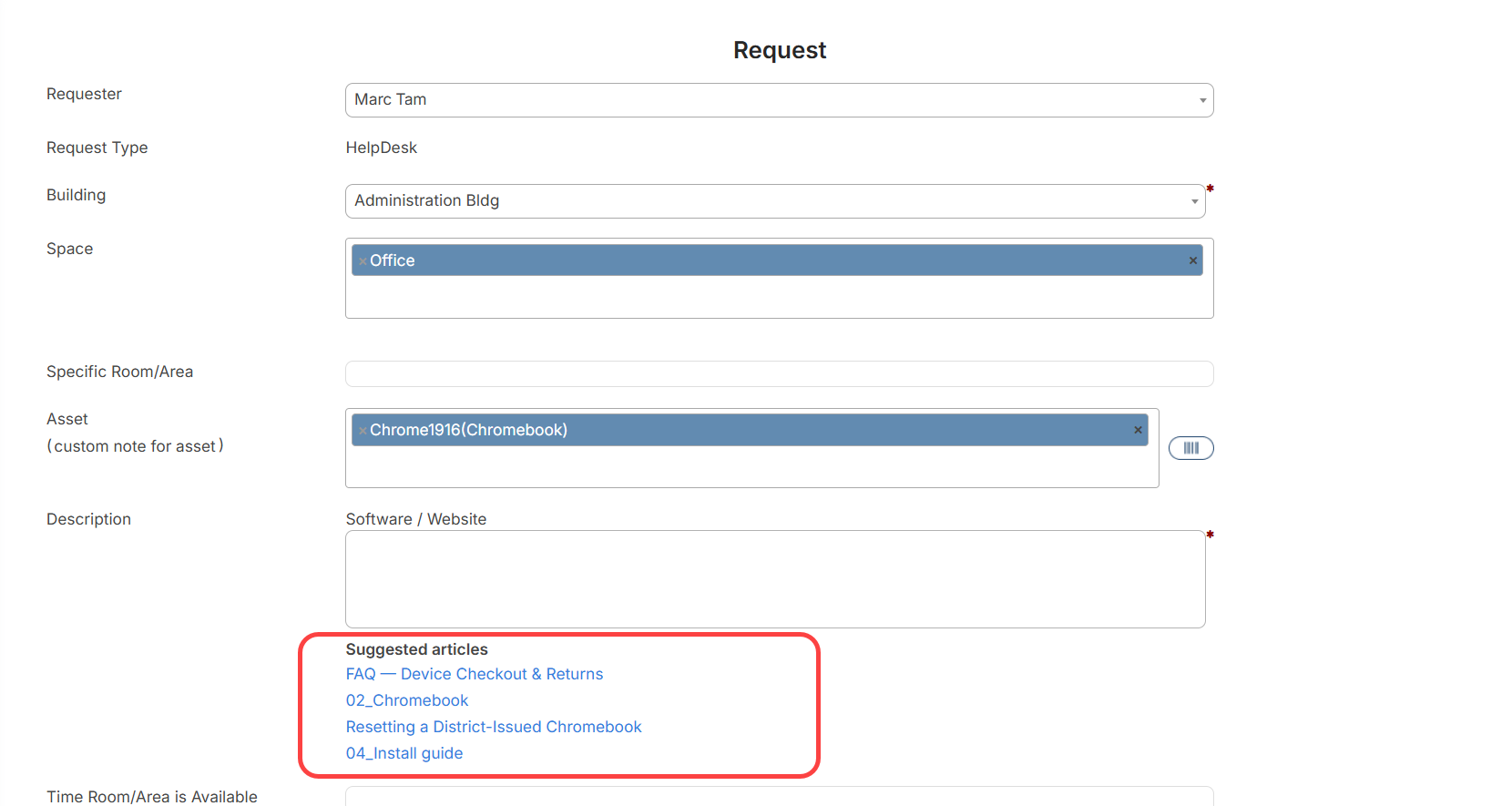
When requests are submitted in walk-through mode, articles are matched using the following hierarchy:
- Request Type + Specific Category + Specific Asset Type
- Request Type + All Categories + Specific Asset Type
- Request Type + Specific Category + All Asset Types
- Request Type+ All Categories + All Asset Types
If you submit a request on the single-form page, matching is based on the following criteria:
- Request Type + Specific Asset Type
- Request Type + All Asset Types
Manage Knowledge Base articles
To create a new article:
- Select Knowledge Base. The Knowledge Base articles page appears.
- Click + Create New. A pop-up appears.
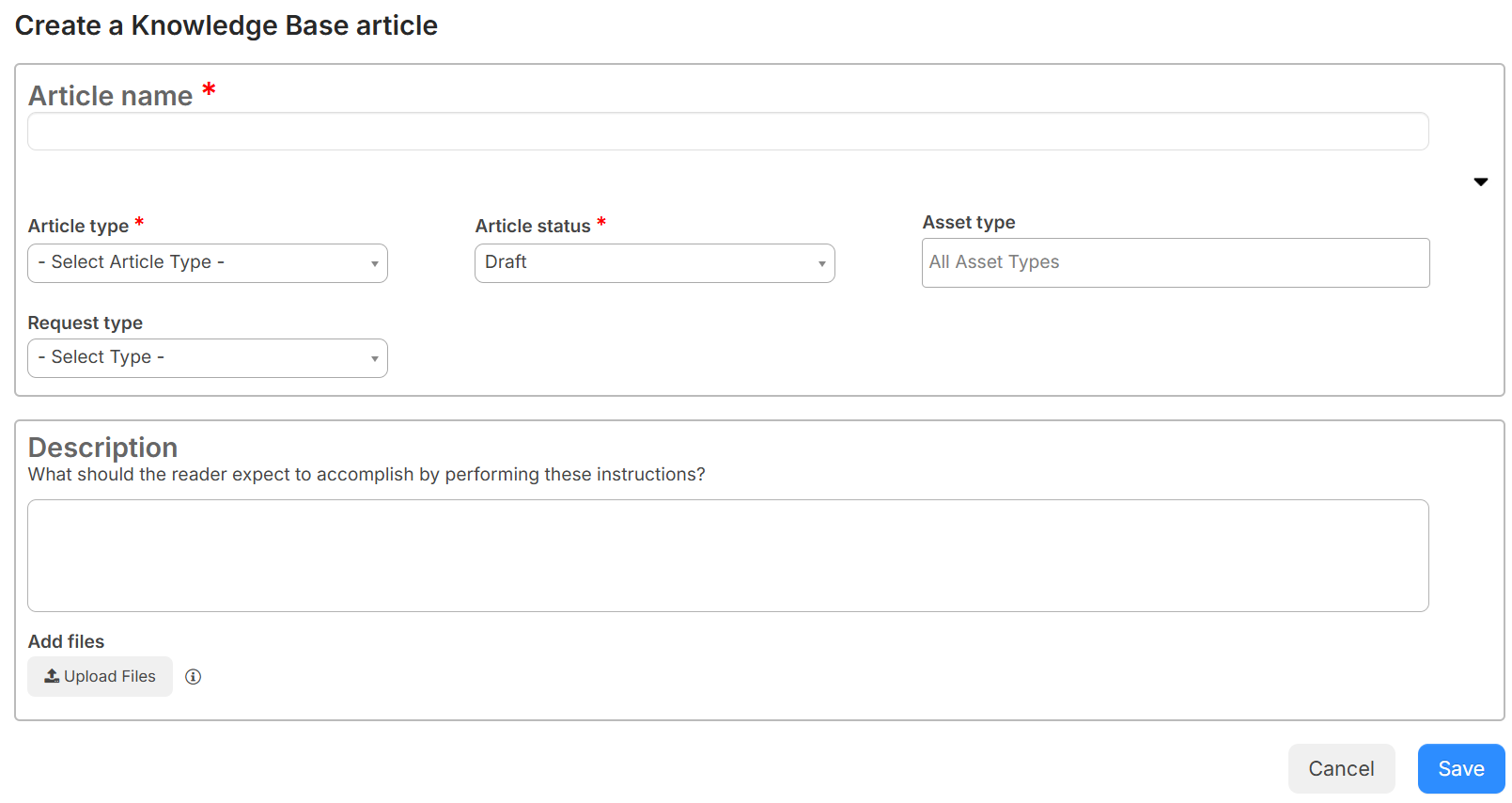
- Enter a unique Article name.
- From the Article type drop-down, select the applicable category.
- From the Article status drop-down, select Draft or Published.
- To limit which users can see an article based on their role, select the associated Asset type and Request type.
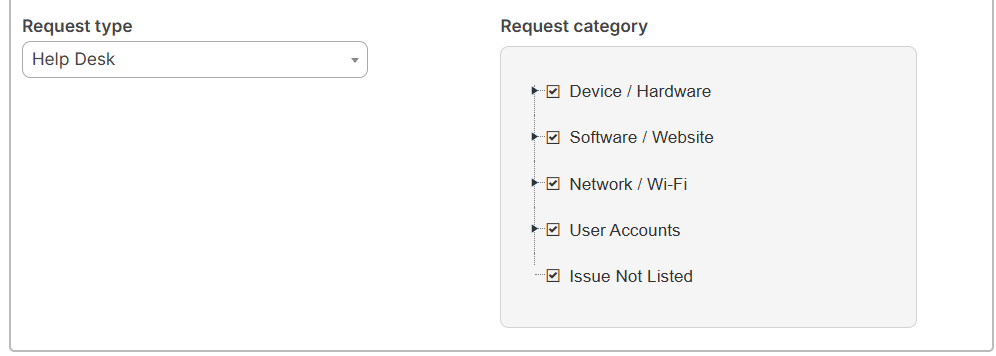
- If the Request category section appears after you select a request type, choose the applicable categories.
- In the Description field, provide background information or step-by-step procedures.
Note: You can add hyperlinks and images, and format text with bold, italics, underline, strikethrough, and ordered or unordered lists.
- To add images or files in PDF, DOC, DOCX, or TXT format, click Upload Files. Select the file(s), and click Open.
Note: There is no maximum file size.
- Click Save.
To edit or delete an article:
- Select Knowledge Base. The Knowledge Base articles page appears.
- Do any of the following:
- To edit an article, click
 . Make the applicable changes, and then click Save.
 - To delete an article, click
 . On the pop-up confirmation message, click Yes, delete.
- To edit an article, click
- Click Save.