Integrate with Okta (SAML)
Users with the Manage District Settings user permission can set up single sign-on with Okta. This integration creates user accounts as users log in for the first time.
This is a three-step process:
- In Okta, add a new SSO connection.
- In IT Asset Manager, configure SAML.
- In IT Asset Manager, set default roles for users who log in via Okta.
|
Important:
|
Step 1: In Okta, add a new SSO connection
A few things to take note of while setting up the SAML application:
- Fields are case sensitive.
- Select Applications > Create App Integration.
- For Sign-in method, select SAML 2.0.
- In General Settings, enter a unique App Name to correspond with IT Asset Manager.
- For SAML Settings, set up the single sign-on URL.
Note: Enter https://XXXXX.mlworkorders.com/MLSAMLConnect.aspx. Replace XXXXX with your custom IT Asset Manager subdomain.
- Select the Use this for Recipient URL and Destination URL checkbox.
- For the Application username, select Okta username.
- In Attribute Statements, you need to match the text exactly as follows:
- FirstName
Value: user.firstName - LastName
Value: user.lastName - Email:
Value: user.email - ExternalId
Value: user.employeeNumber
- FirstName
- In Group Attribute Statements, select the groups you will pass to IT Asset Manager. This will then automatically assign users role(s) in IT Asset Manager.
- Select I'm an Okta customer adding an internal app.
- Download the active SAML signing certificate (Actions > Download certificate) and copy into IT Asset Manager.
|
Note: Okta’s interface and field names may have changed since this was written. Use these steps as a general guide, and select the closest matching options in your Okta portal. |
Step 2: In IT Asset Manager, configure SAML
- Select Settings > Single Sign On > SAML Configuration. The SAML Integration Admin page appears.
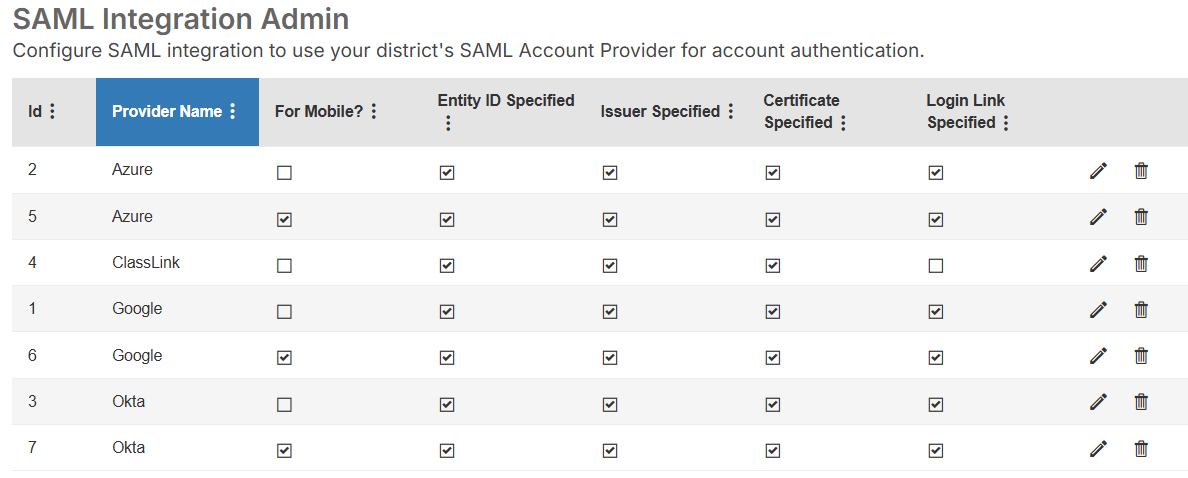
- Next to Okta, click . A pop-up appears.
Note: You may see two rows for Okta, one with a checkbox in the For Mobile column and one without a checkbox in that column.
To set up the web app, select in the row without the For Mobile checkbox selected.
To set up the mobile app, select in the row with the For Mobile checkbox selected.
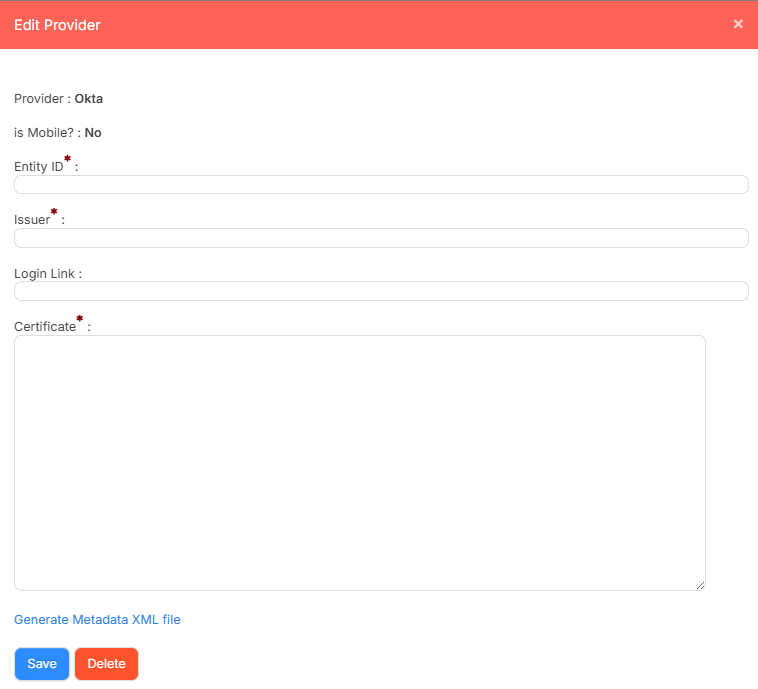
- Do the following:
- Under Entity ID, enter your Okta identifier.
- Under Issuer, enter the desired Okta URL.
- Under the Login Link, if desired, paste the App Embed Link from Okta.
- Under Certificate, enter the certificate.
Note: You download this from Okta, then enter it here.
- Click Save.
Step 3: In IT Asset Manager, set default roles for users who log in via Okta
|
Note: You can create as many SAML groups as you want. When a user first logs in, they are assigned a role based on the group they belong to. You can also manage additional roles in IT Asset Manager, but cannot remove these default roles. |
- Select Setting > Single Sign On > SAML Group Settings. The Manage SAML Groups page appears.
- Click +Add SAML Group. A pop-up appears.
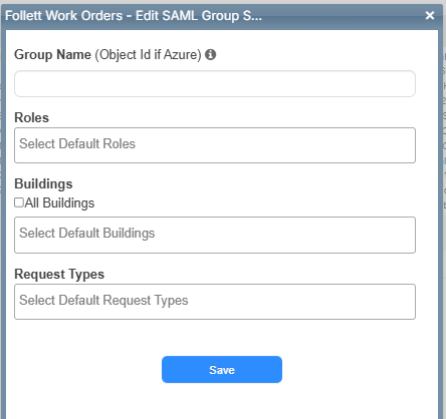
- Enter a Group Name.
Note: This will be the group name established in Okta.
- Select the desired Roles.
- Select the desired Buildings.
Note: To select All Buildings, select the checkbox.
- Select the desired Request Types the group can access.
- Click Save.
- Repeat steps 2-7 for each group you want to add.