Use your Dashboard page
The Dashboard is visible to all users. The widgets you see and actions you can take are based on your user permissions.
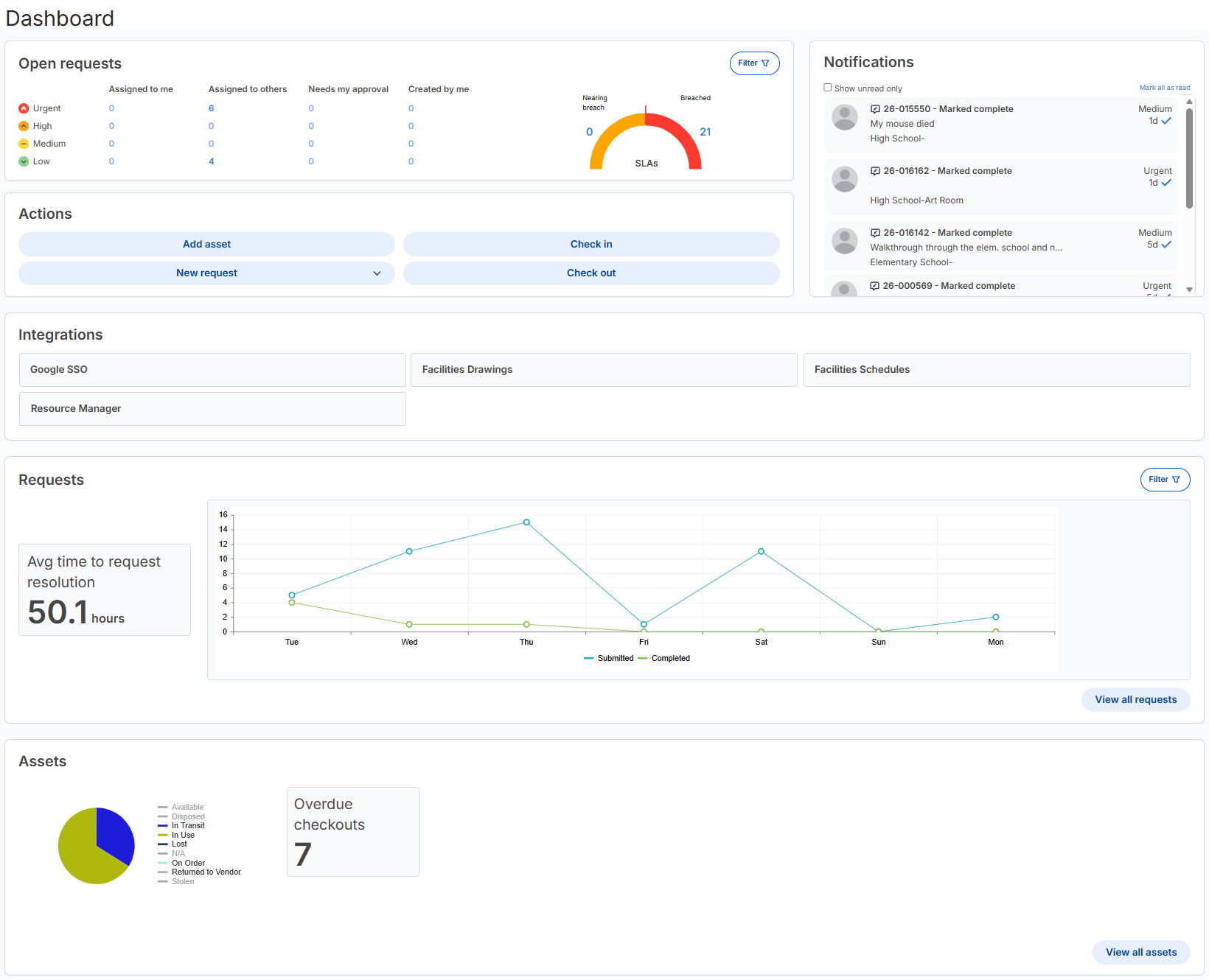
Open requests panel

The 'Open requests' panel shows all open requests you have access to based on your permissions.
You may see some or all of the following columns and SLAs (service level agreement) widget in the 'Open requests' panel, also based on your permissions:
| Column | Associated permission | |
|---|---|---|
| Assigned to me | Can Be Assigned WOs | |
| Assigned to others | Can Be Assigned WOs or Assign WO to Others | |
| Needs my approval | Approve on Behalf of Others or Approve WOs, and the request is pending their approval | |
|
Created by me
|
Submit Work Order | |
| SLAs
This shows open requests that have an SLA (service level agreement). Requests that have a first response time and/or resolution time of less than 25% remaining appear as Nearing breached. Breached requests have no first response time, and/or the resolution time is expired. |
Must have at least one SLA created and one of the following permissions: Assign WO to Others, Can Be Assigned WOs, or Edit WOs. |
|
| Priority |
Based on the Priority Field Visibility setting on the Manage Request Types page.
|
To filter the 'Open requests' panel, click  and choose from the following:
- Request types
- Buildings
- Statuses that are open
- Date range options
|
Note: After you set a filter, it remains in place when you log out and back in (until you clear or update it). |
Actions panel

You may see some or all of the following buttons in the Actions panel:
| Action button | Associated permission |
|---|---|
|
Add asset Opens a new browser tab, and the Manage Asset page appears. |
Add Asset |
|
Check in Opens a new browser tab, and the Quick Circulation page appears. |
Edit Assigned User |
|
Check out Opens a new browser tab, and the Quick Circulation page appears. |
Edit Assigned User |
|
New request The request type drop-down appears, showing only request types you have access to in your role. |
Submit Work Order |
If you do not have any of the above permissions, the panel doesn't appear.
Notifications panel
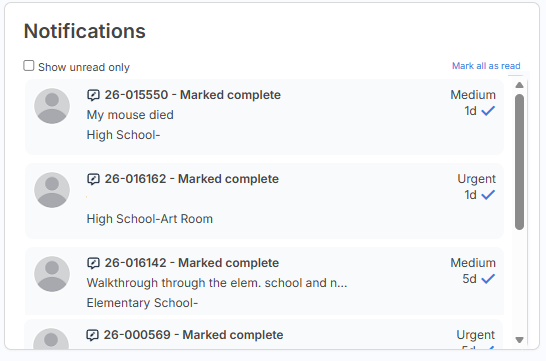
You can quickly see your notifications in the Dashboard. This is the same as clicking the notification bell in the header. You can choose to show unread notifications only, and mark all of them as read.
Any emails and/or texts you receive for requests and other product-related notifications (such as for assets, checking in, checking out, and inventory requests) will also appear.
Integrations widget

If your district has integrations and you have the Manage Site Settings administrative permission, you will see all active integrations.
Requests panel
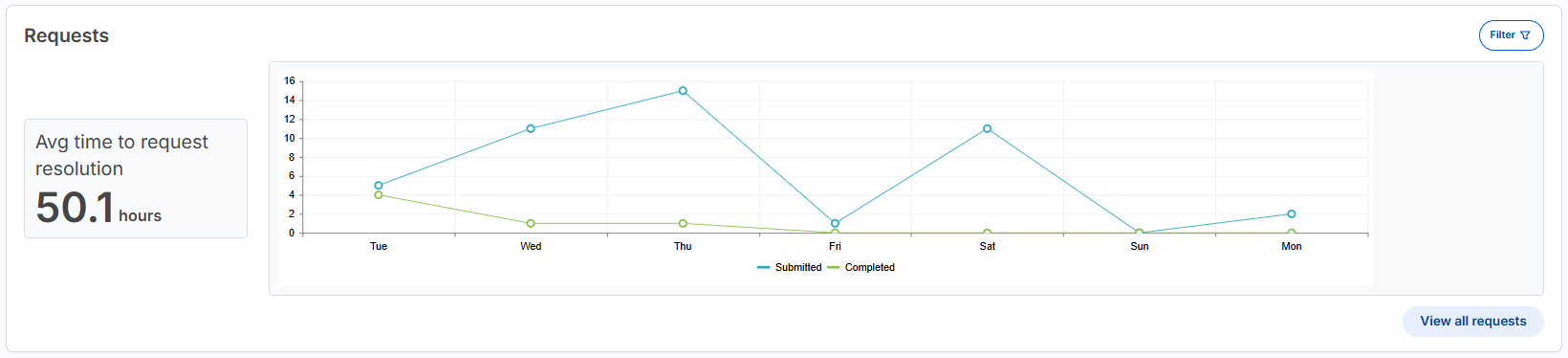
To see the Requests panel, you need the View WO Report permission. This panel includes an 'Average time to request resolution' widget and a line graph widget showing the number of requests submitted and completed over the last seven days.
To filter requests on the panel, click Submitted or Completed under the graph or click , and then select Request types or Buildings.
|
Note: After you set a filter, it remains in place when you log out and back in (until you clear or update it). |
To access the Request Report, click View all requests.
Assets panel
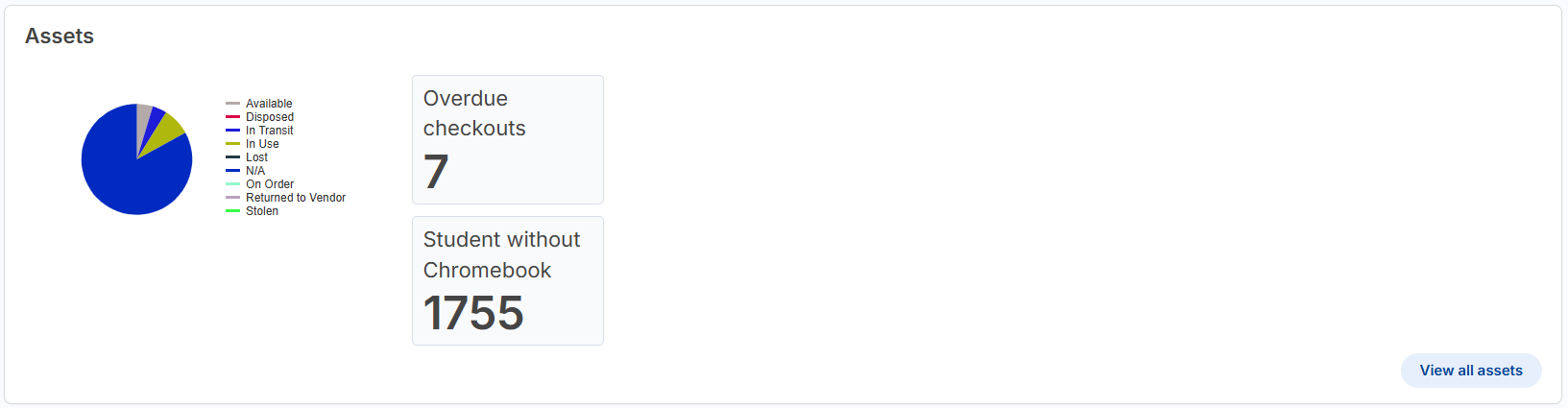
To see the Assets panel, you need either the View Assets or Edit Asset permission.
The interactive pie chart shows all assets in the system based on their status. To view assets of a specific status, click that status to have the pie chart update accordingly. Any asset that does not include a status in the record appears in the N/A category.
The 'Overdue checkouts' widget looks at assets that are in use, lost, or stolen. If the due date is before today, it is overdue.
The '[role name (typically a student role)] without [asset type]' widget is dynamic and only appears if the Student Role and Student Device options are set on the Manage General Settings page, Assets tab.
To access the Manage Assets page, click View all assets.