Create and manage teams
Teams are a group of people who share similar skills to work on/troubleshoot specific requests. For example, you may want to make a team to repair cracked computer screens or a team for HVAC or pest control-related work orders.
Users with the Manage Users and Permissions administrative permission can create teams to work on specific requests.
Once a team is created, you can manually assign requests to it, or set up Auto Assignments and Auto Notify. Teams can also be used when creating Preventative Maintenance (PMs) requests.
To add a new team:
- Select Users > Manage Teams. The Manage Teams page appears.
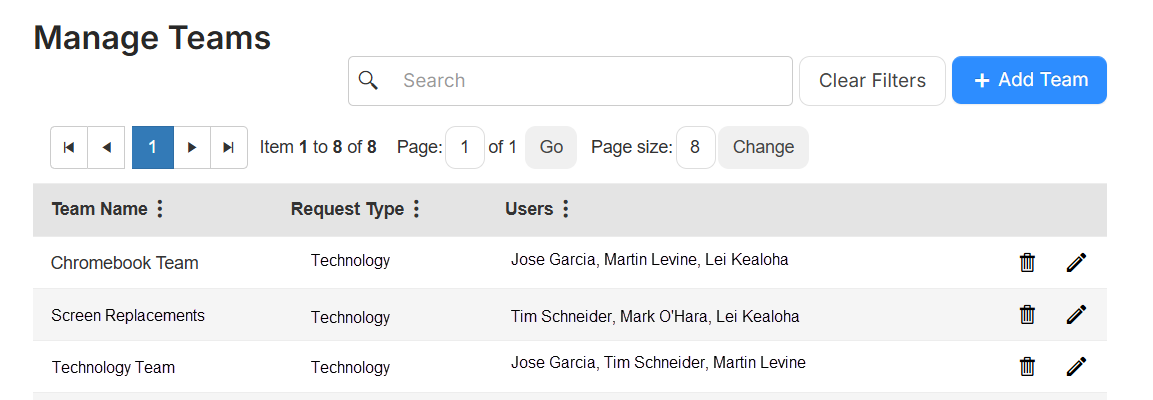
- Click + Add Team. The Manage Team page appears.
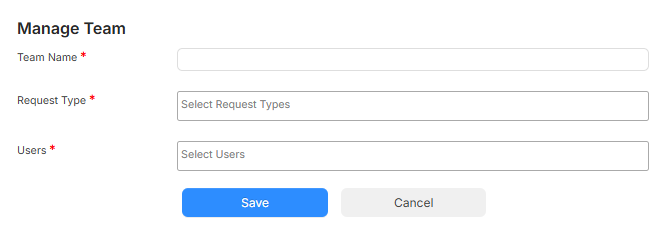
- Do the following:
- Enter a Team Name.
- Select one or more Request Type(s).
- Select the desired Users.
- Click Save.
To edit an existing team:
- Select Users > Manage Teams. The Manage Teams page appears.
- Next to the team you want, click
 .
. - Make the desired edits.
- Click Save.
To delete an existing team:
- Select Users > Manage Teams. The Manage Teams page appears.
- Next to the team you want, click
 .
.Note: You cannot delete a team if it has requests assigned to it.
- On the confirmation pop-up, click OK.