Set notification rules for request status change
Users with the Manage Site Settings administrative permission can set rules to automatically send notifications when a request's status changes, based on:
- Request type
- Building
- Problem type
To add or edit a notification rule:
- Select Settings > Manage Auto Notify.
- Do any of the following:
- To add a new notification, click + Add Auto Notify.
- To edit an existing notification, click
 .
.
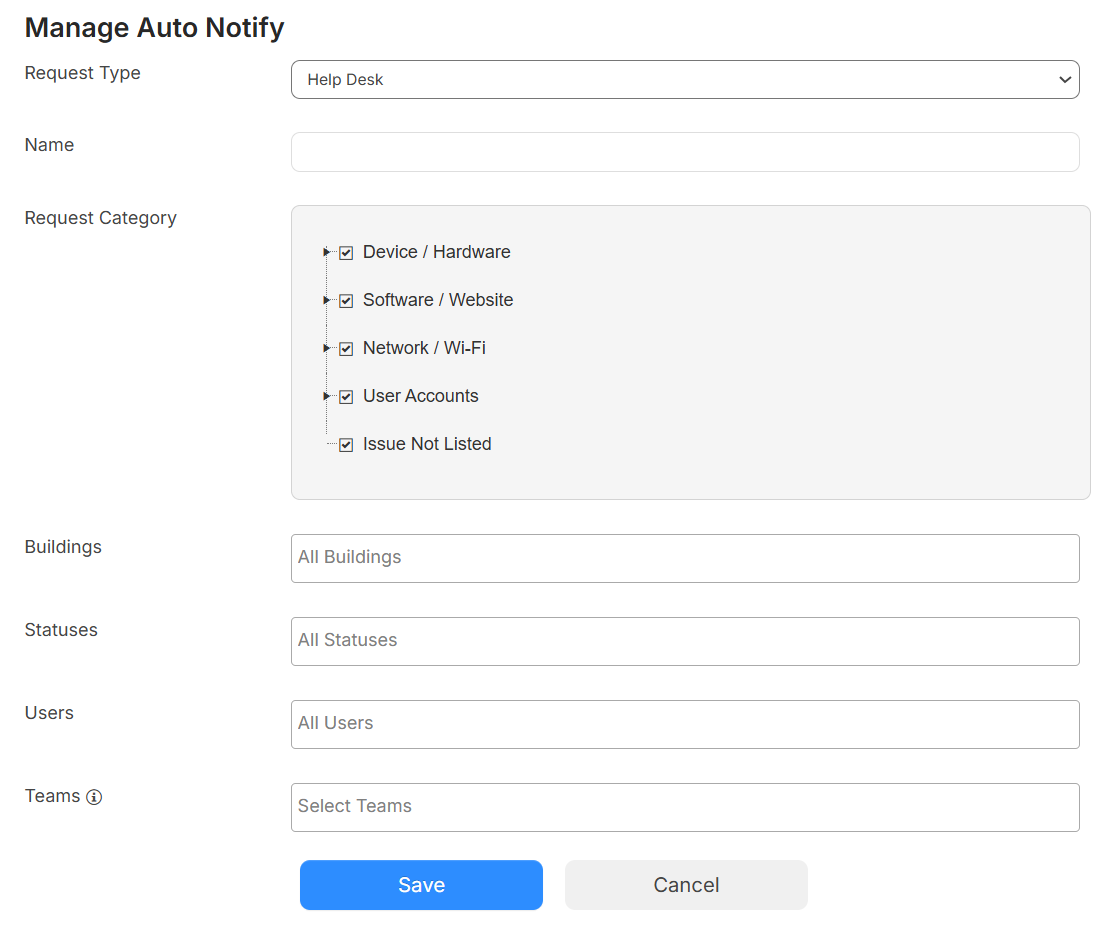
The Manage Auto Notify page appears.
- Do any of the following:
- Select the Request Type this rule applies to.
- If a Request Category field appears, click
 to see sub-categories. Then deselect any checkboxes for categories that do not apply.
Note: Request categories vary based on your district setup. - Enter a Name.
- Use the following multi-select drop-downs to select one or more options that the rule applies to:
- Buildings
- Priorities
- Problem Types
- Statuses
- Select the Users and Teams you want to notify.
Note: Adding a team notifies all users on that team.
- Click Save.
To delete an existing notification rule:
- Select Settings > Manage Auto Notify.
- On the notification rule you want, click
 .
. - On the pop-up message, click OK.