View notifications
You can receive a notification when the status of your request changes, or a note is added. You can set rules to determine which notifications appear.
When you have a new notification, a red bubble shows the number of unread notifications.
To view your notifications:
In the top-right, next to your name or profile picture, click the Notifications icon.

Your notifications appear.
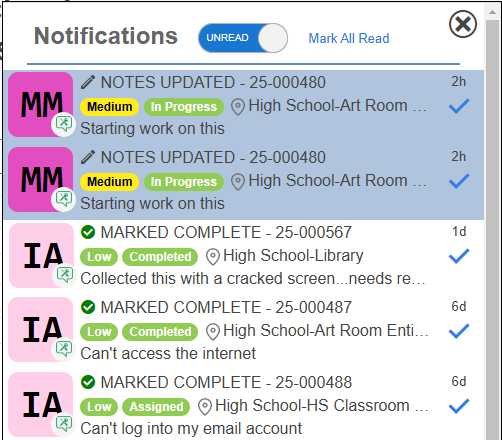
- Click a notification to see the respective details page - request, inventory request, or asset - based on the notification type.
- Use the toggle to show All or Unread notifications.
- Clear all unread notifications by clicking Mark All Read.
- Mark a notification read by clicking
 .
. - Display the entire name of the user by hovering over the profile picture or user's initials.
Note: A picture is automatically synced if one is uploaded to your Google Account. If no image is present, the first name, last name, and initials appear. Users can manually upload photos if not synced to a Google account via the profile page.
- Display the date and time stamp of when the notification was sent by hovering over the time marker.
- Close the notification center by clicking
 .
.