Edit your profile
The Profile icon  lets you update your name and location, and set your notification preferences. You can edit your profile at any time.
- In the top-right corner, next to your name, select > Profile. The Manage Profile page appears.
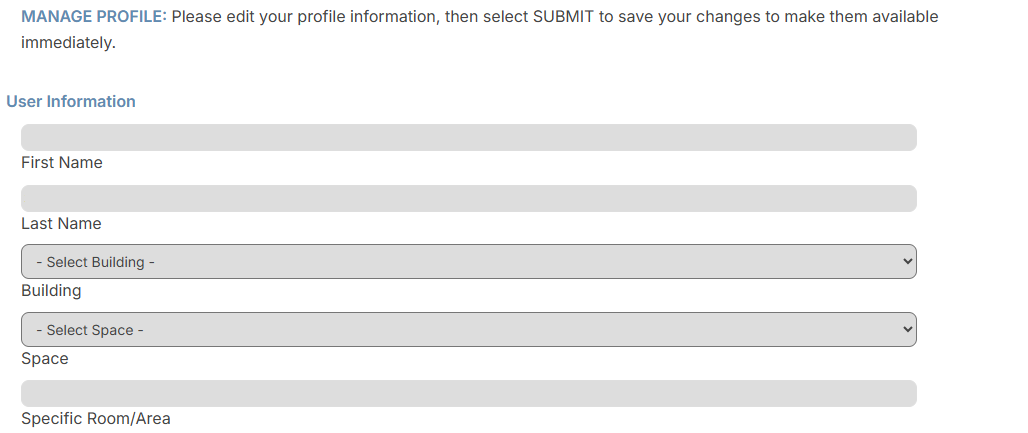
- Enter your First Name and Last Name.
- Select your Building, Space, and Specific Room/Area.
Note: Building and Space information auto-populates when you submit requests, and you do not have to select them each time.
- To enable notifications, do any of the following:
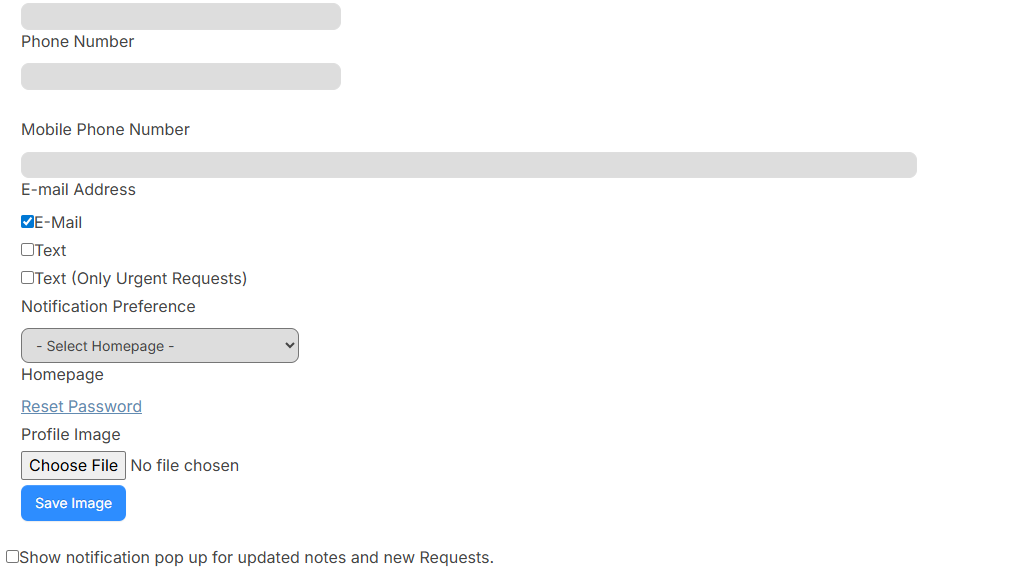
For... Then... Email notifications - Enter your email address.
- Select the E-Mail checkbox.
Note: You can set up rules in Gmail or Outlook to have notifications sent to a separate folder, instead of going to your general inbox. Search "Create rules to filter your email" in Gmail help or "Rules" in Outlook help.
Text notifications
Note: The mobile phone number will only be used for texts. - Enter your mobile phone number.
- Select one of the following checkboxes:
- Text
- Text (Only Urgent Requests)
Notes:
To limit notifications, select Text (Only Urgent Requests).
Texts are sent for the following notifications:
- Notify of Canceled Requests
- Notify of Closed Requests
- Notify of Completed Requests
- Notify of On Hold Requests
- Notify of Updated Notes
- Notify Request Assigned To You
- Notify Request Pending Your Approval
Note: The Notifications icon next to your name or profile picture will only appear if you select email or text notifications.
- To select the page that opens upon login, use the Homepage drop-down .
- Upload a profile image by clicking Choose File under Profile Image. Select your desired image and click Open, then click Save Image.
- To enable pop-up notifications, select the Show notification pop up for updated notes and new Requests checkbox.
Note: Pop-up notifications show on the secondary navigation bar, next to the scan barcode icon.
- Under Notifications, select the desired checkboxes to determine the types of notifications you want to receive.

-
To view your Effective Permissions, clickNote: To receive notifications in the Created by Others section, you must be either assigned to a request or inventory request, part of an approval path, or added as additionally-notified.
 .
. - Click Submit.