Search for a request
Users can search for a request by request ID or by a keyword in the description.
To search from the Requests page:
- Select Requests > View All Requests.
Note: You can also search from Requests > My Requests, My Open Assignments, My Closed Assignments, Open Requests, Closed Requests, and Pending My Approval.
- Do one of the following:
- Apply one or more filters.
Note: To view all requests, in any column , click the flexible filtering icon
 . In the filter (
 ) section, select Check All, and then click Filter.
 - In the page's Search bar, enter a request ID or keyword. Then click the search icon or press Enter.

- Apply one or more filters.
To search from any page:
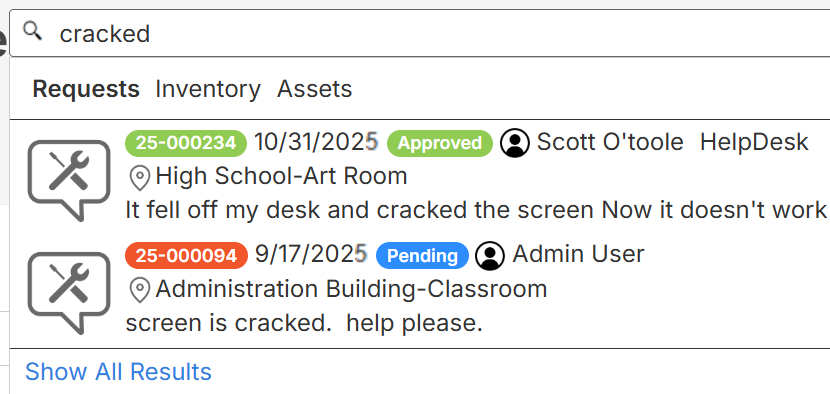
- In the universal Search bar at the top of the page, enter a request ID or keyword.
- To search by barcode, scan the request barcode
 .
.

| Note: Universal search looks in the following fields: Description, Create user, Building, Purpose, Problem type, Budget code, Assigned users, Request ID, and Notes, including numbers within a note. |
Search results appear as you search.