Manage canned responses
With the Assign Requests to Others or Can Be Assigned Requests permission, you can add, edit, and delete canned responses (preset messages for frequently-used situations). You can add canned responses to notes.
To add a canned response:
- Select Requests > Canned Responses. The Canned Responses page appears.
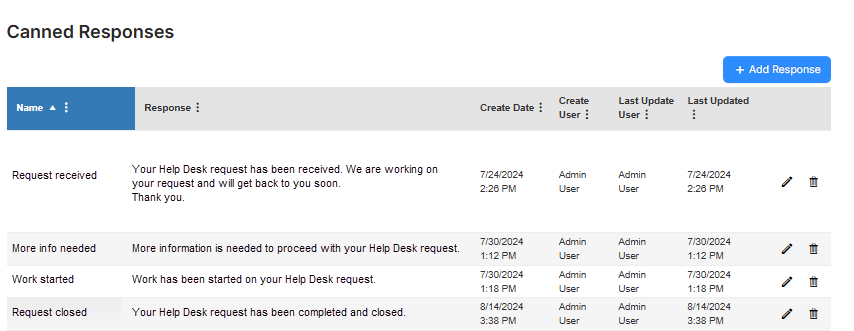
- Click + Add Response. The Manage Canned Response page appears.
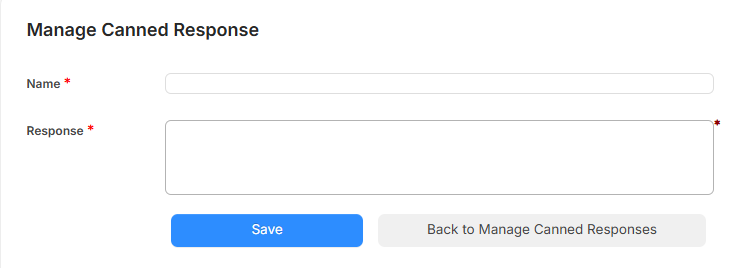
- Do the following:
- Enter a Name.
- Enter the desired Response.
Note: Responses are limited to 2,000 characters.
- Click Save.
To add a canned response from a request:
- Find a request, and go to its details page.
- In the Notes section, type a note.
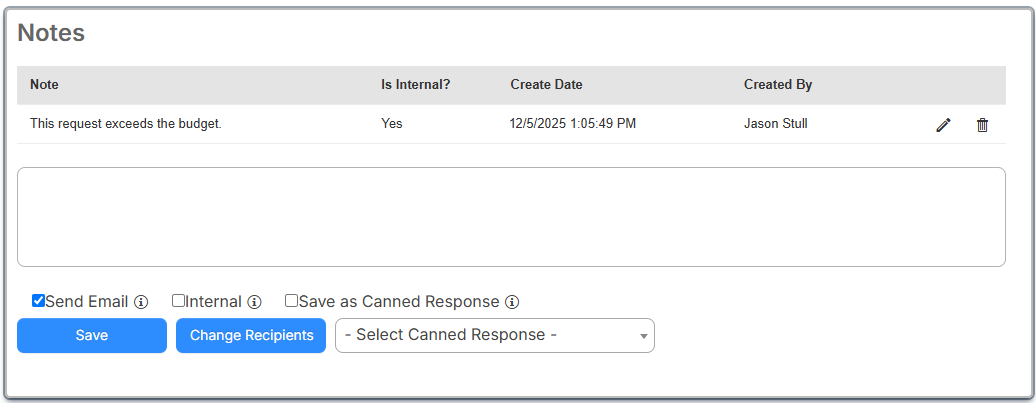
Note: The Canned Response will get an auto-name that includes the request's purpose and problem type, if applicable. You can edit the Auto-Name on the Canned Responses page.
- Select the Save as Canned Response checkbox.
- Click Save.
To edit a canned response:
- Select Requests > Canned Responses. The Canned Responses page appears.
- In the row of the response you want to edit, click
 . The Manage Canned Response page appears.
- Make any edits you want.
- Click Save.
To delete a canned response:
In the row of the response you want, click  .
.