Manage API keys
API keys allow approved third-party applications to authenticate with IT Asset Manager on behalf of a specific user. If you have the Manage Site Settings administrative permission, you can manage API keys.
Note: To access API documentation, go to https://XXXXX.api.mlworkorders.com/swagger/index.html. Replace “XXXXX” with your custom IT Asset Manager subdomain. |
To add an API key:
- Select Settings > Integrations > API Keys. The API Keys page appears.
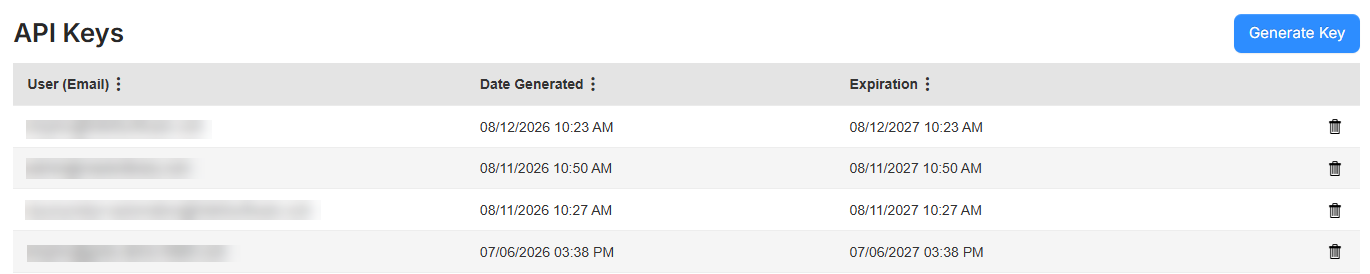
- Click Generate Key. The Generate API Key pop-up appears.
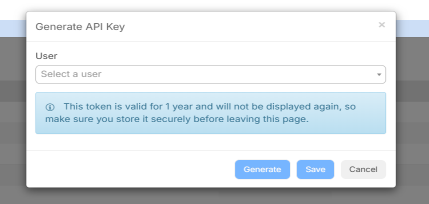
- From the Select a user drop-down, enter the first or last name to narrow the list.
- When you find the user, click their name.
- Click Generate.
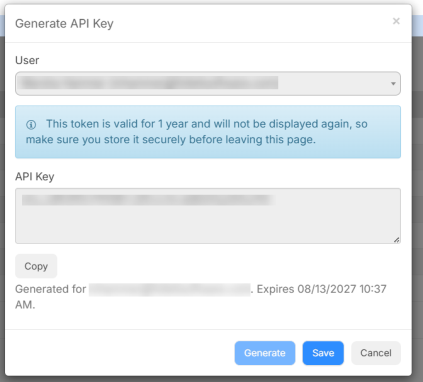
- Click Copy, and then securely store the key.
Notes:
- API keys are valid for one year and are displayed only once. You cannot view a key again after leaving the page.
- The external API uses an API key + tenant header pair, not a Bearer token. You need to send both headers on your requests:
- X-Api-Key: <your generated token>
- Tenant: <your subdomain>
Make sure to call /api/external/v1/... endpoints.
Drop the Authorization: Bearer header for these, as it is not used by this API.
If you still get a 401 with both headers set, your key may be expired or your account inactive. Contact Technical Support.
- Click Save.
To delete an API key:
- Select Settings > Integrations > API Keys. The API Keys page appears.
- Next to the key you want to delete, click
 . A pop-up message appears.
 - Click Delete.