Integrate with Facilities Drawings
You can integrate with Facilities Drawings to view drawings associated with an asset. Also, if there are any requests associated with an asset that is part of a drawing, you can locate the drawing by viewing the request.
To integrate Drawings:
- Select Settings > Integrations > Facilities Drawings Integration. The Facilities Drawings Integration page appears.
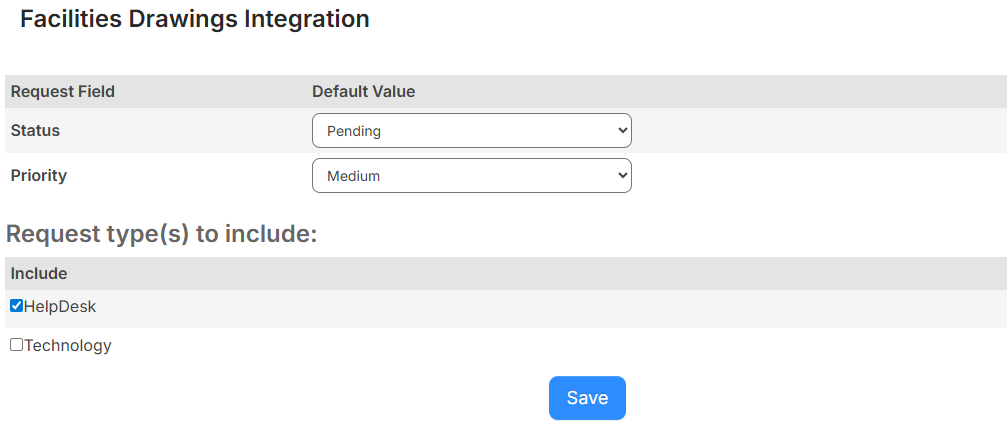
- Select the request Status and Priority.
- Select the request types that are linked to Drawings.
- Click Save.
Changes to any of the following back-end settings are reflected in Facilities Drawings:
- Campus
- Building
- Space
- Floor
- Assets
- Asset types
- System zones
|
Note: When making changes to the settings above, a message at the bottom of the page informs you the adjustment is also made in Drawings. |

To view a drawing:
- Select Assets > View All Assets.
- Click the asset name you want to view.
- Click the Drawings tab.

- Click the drawing name.
Note: To view the drawing, you need the View Drawings asset permission.
Facilities Drawings opens to the drawing.
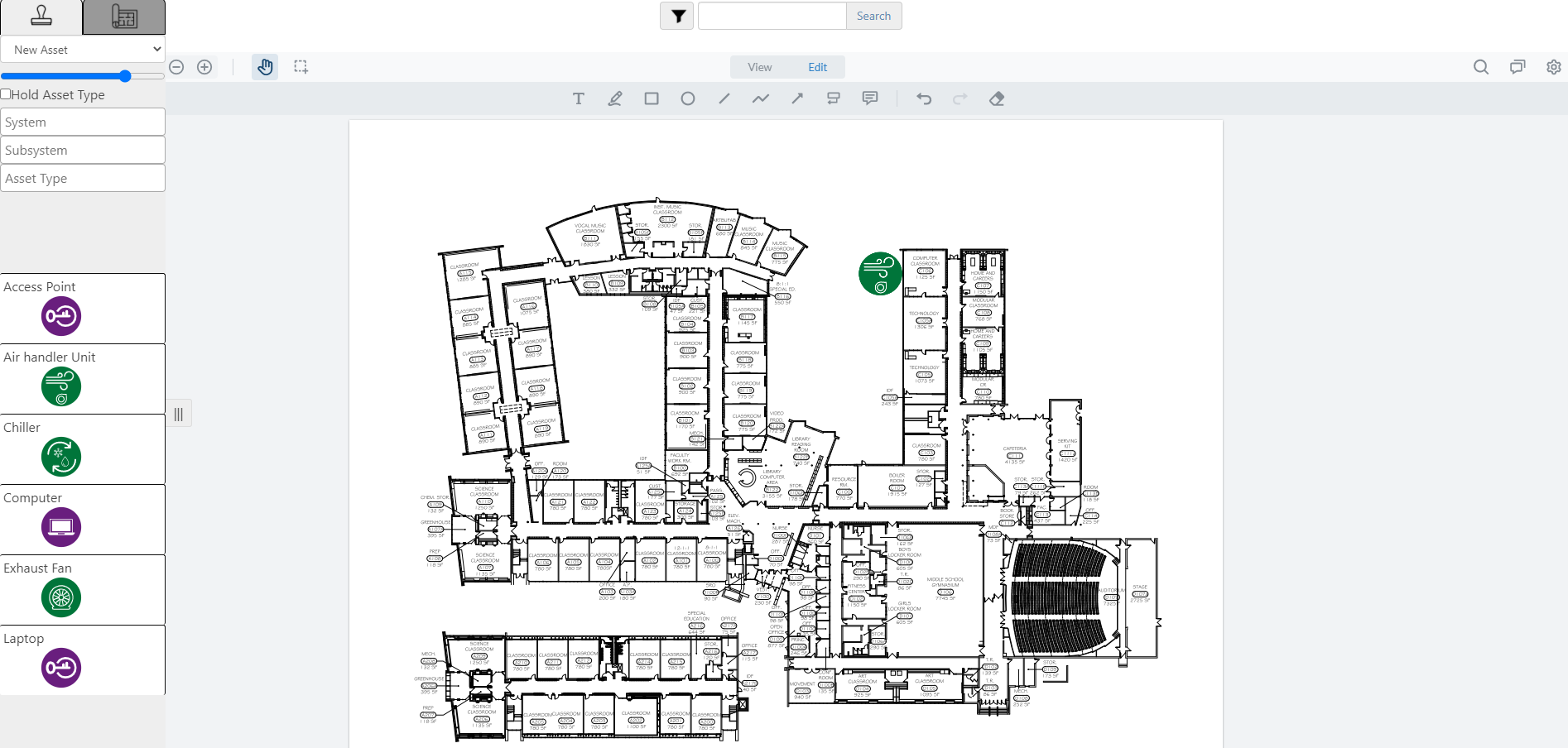
To see details about the drawing, click an asset in the image.
You can also open a drawing from the Drawings tab of a request details page.