Enable AI features
AI in IT Asset Manager helps teams work more efficiently by providing actionable insights, organizing information, and automating routine tasks. The Technology AI Assistant answers product-focused questions, such as how many requests are open or how many assets are checked out.
AI Email Ticketing streamlines request intake by converting incoming requests into categorized, summarized tickets, reducing manual data entry for technicians.
Enable the Technology AI Assistant
An administrator with the Manage Users and Permissions administrative permission must grant users access to the assistant.
|
Note: The assistant honors each user's existing permissions. For example, if a user can access assets at the high school and asks about the elementary school, the assistant does not provide an answer. |
To grant access to a single user:
- Select Users > Manage Users.
- Find the user by searching or using a filter.
- Click
 next to the user.
 - Scroll to the Administrative Permissions section and select AI Assistant.
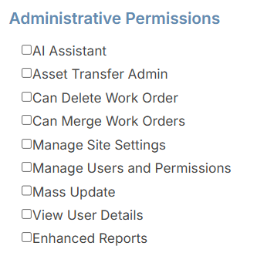
- Click Save.
To grant access to multiple users:
- Select Users > Manage Users.
- Do one of the following:
- In the row of each user you want to update, select the checkbox.
- To select all users on a page or all across all pages, click at the top of the Select all column.
- Select Actions > Mass Update.
- Select the Administrative Permissions – Add checkbox, and then select AI Assistant.
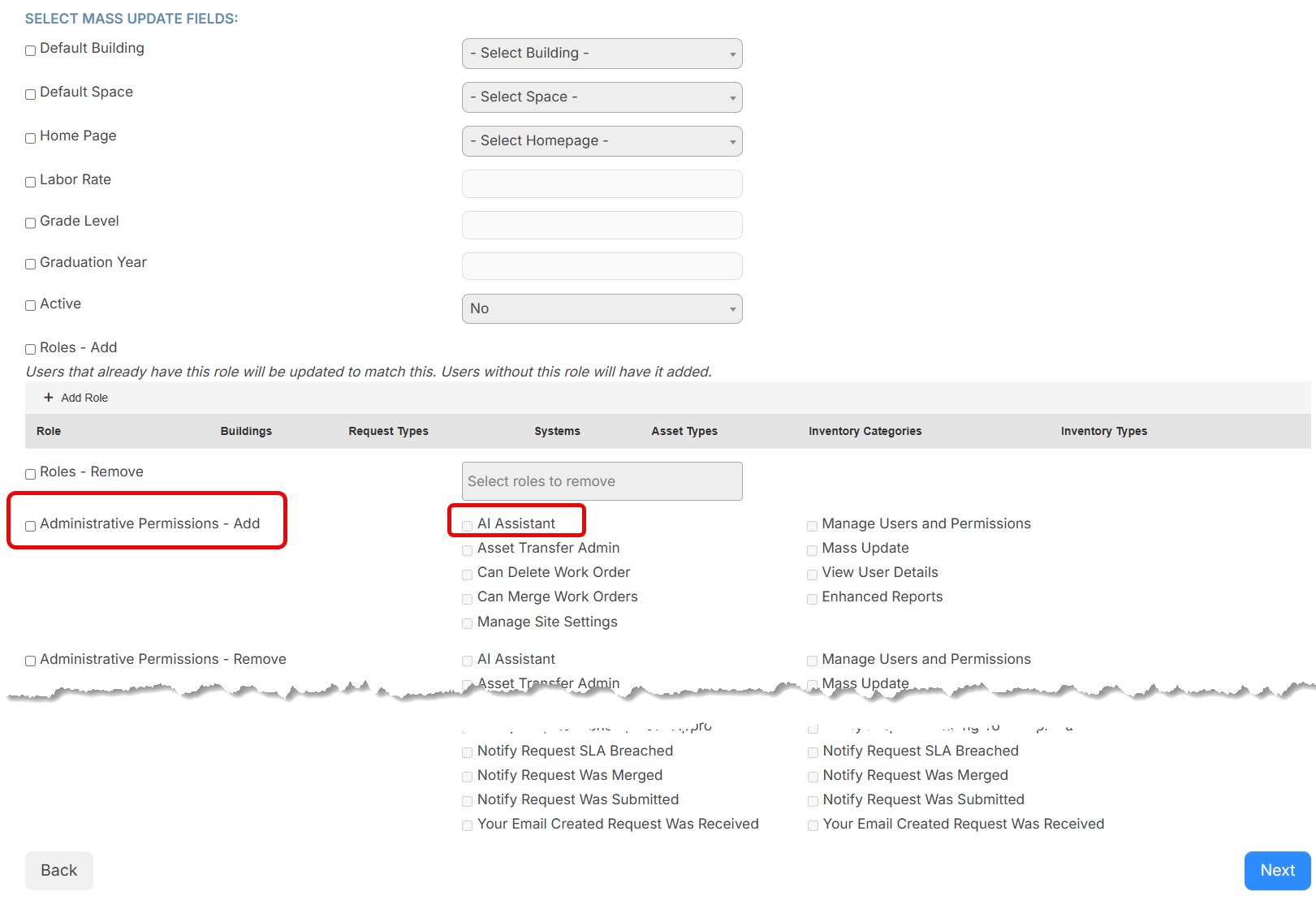
- Click Next at the bottom of the page.
- Click Go!.
- In the confirmation pop-up, click OK.
Enable AI Email Ticketing
To have AI populate request fields, a user with the Manage Site Settingsadministrative permission must enable the applicable settings. Before enabling AI, ensure email ticketing is enabled.
- Select Settings > Manage Request Types.
- Click next to the request type.
- Do one or both of the following:
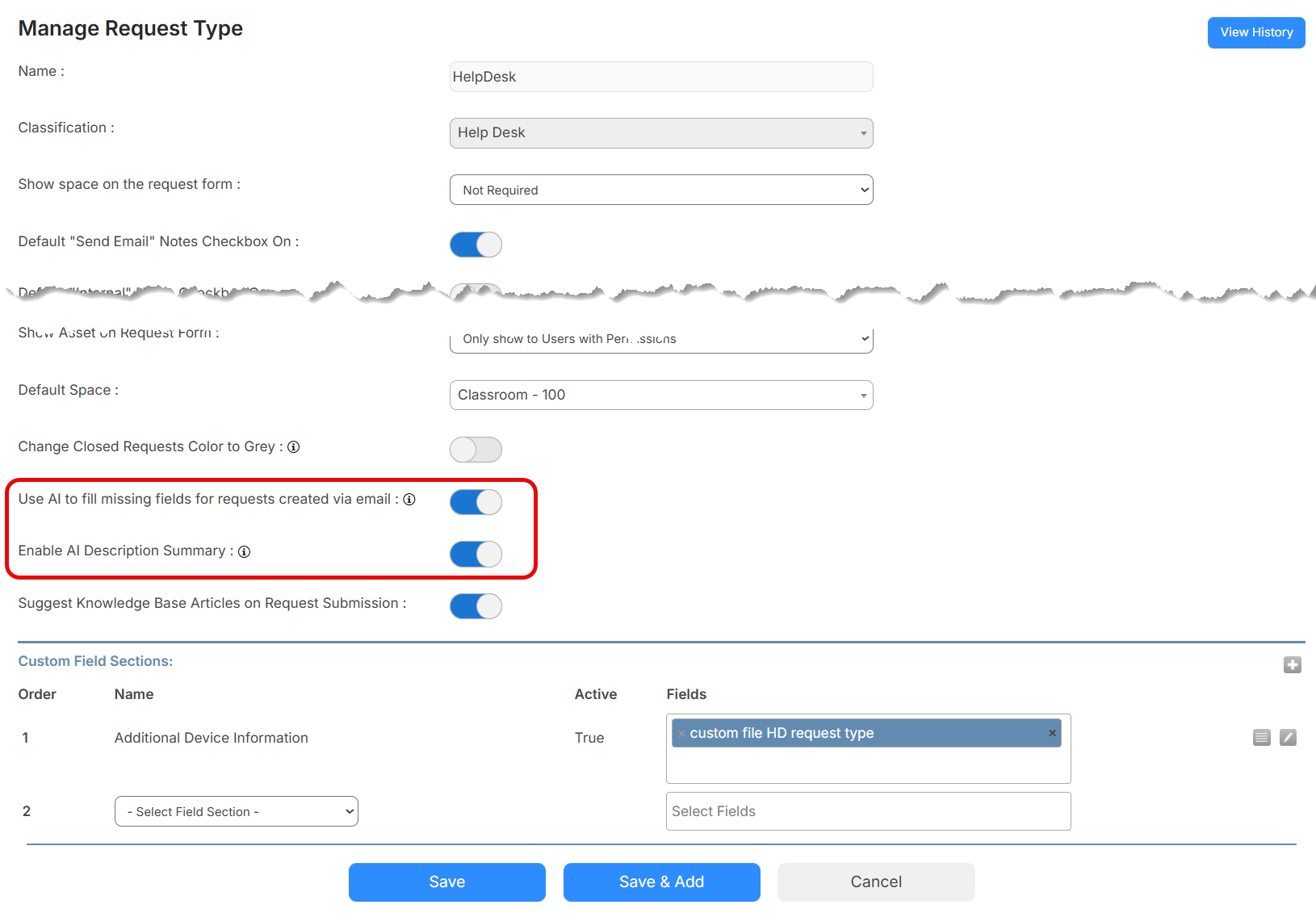
- To have AI complete the Priority, Purpose, Problem Type, and Category fields when an email-submitted request is missing that information, select the Use AI to fill missing fields for requests created via email toggle.
- To have AI summarize descriptions longer than 500 characters, select the Enable AI Description Summary toggle.
- Click Save.