Configure Microsoft Exchange for shared mailbox routing
You can route mail from a Microsoft Exchange Online shared mailbox to IT Asset Manager while preserving the IT Asset Manager routing address in the message headers.
The following conditions apply:
- Your organization is hosted in Microsoft Exchange Online.
- Users send email to a shared mailbox in your tenant.
- The shared mailbox is used as the intake point before mail is redirected to IT Asset Manager.
- Your Exchange administrator understands Exchange Online transport rules and shared mailbox forwarding.
This configuration is recommended for organizations that want IT Asset Manager to identify the correct client and route inbound email correctly. It's required because standard shared mailbox forwarding may not preserve the original IT Asset Manager plus-address needed for routing.
To preserve the routing address, the recommended approach is to:
- Stamp a custom header on the message.
- Redirect the message using a transport rule.
- Send the message directly to the assigned IT Asset Manager routing address.
The required custom header is X-MLW-Original-Recipient. Its value must be the full assigned IT Asset Manager email address, including the plus-address GUID.
|
Example: mlwnew+1954_17b57476-4b3f-403d-af82-b9d5f0e31133@masterlibrary.com |
Before you begin
You need the following to route mail:
- Exchange Online administrator access.
- Permission to create and enable mail flow rules.
- The shared mailbox email address your users send to.
- The assigned IT Asset Manager routing address for your organization.
You should also confirm the following:
- The shared mailbox currently receives incoming email successfully.
- The IT Asset Manager routing address has been provided by the IT Asset Manager team.
- Shared mailbox admin forwarding is not relied on as the final solution for this workflow.
Recommended configuration
Create a transport rule that does all of the following:
- Matches messages sent to the shared mailbox.
- Adds the X-MLW-Original-Recipient header.
- Sets the header value to the assigned IT Asset Manager routing address.
- Redirects the message to that same assigned IT Asset Manager routing address.
- Stops additional rule processing.
You can create the rule in Exchange Online PowerShell or in the Exchange Admin Center.
PowerShell method
If you are comfortable with Exchange Online PowerShell, you can use this procedure.
- Connect first: Connect-ExchangeOnline
- Create the rule:
New-TransportRule `
Name "ITAM Redirect with Header Injection" `
SentTo "helpdesk@yourschool.edu" `
SetHeaderName "X-MLW-Original-Recipient" `
SetHeaderValue "mlwnew+GUID@masterlibrary.com" `
RedirectMessageTo "mlwnew+GUID@masterlibrary.com" `
StopRuleProcessing $true `
Mode Enforce
- Replace these values:
Before you run the command, replace these values:
- helpdesk@yourschool.edu with the shared mailbox address your users send to
- mlwnew+GUID@masterlibrary.com with the exact IT Asset Manager routing address assigned to your organization
Example:
New-TransportRule `
Name "ITAM Redirect with Header Injection" `
SentTo "facilities@schooldistrict.org" `
SetHeaderName "X-MLW-Original-Recipient" `
SetHeaderValue "mlwnew+1954_17b57476-4b3f-403d-af82-b9d5f0e31133@masterlibrary.com" `
RedirectMessageTo "mlwnew+1954_17b57476-4b3f-403d-af82-b9d5f0e31133@masterlibrary.com" `
StopRuleProcessing $true `
Mode Enforce
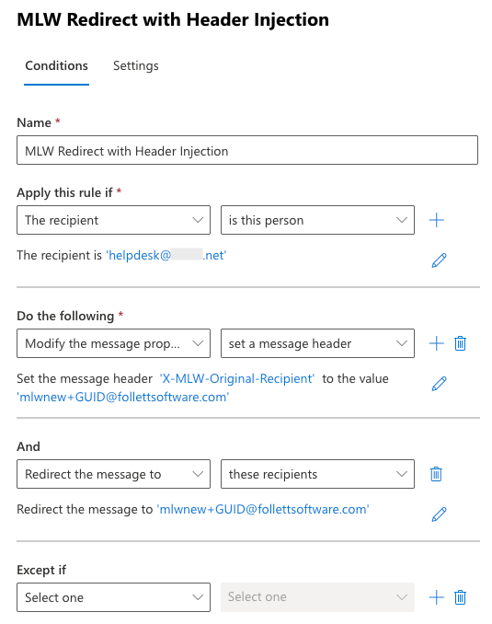
Exchange Admin Center method
If you prefer the Exchange Admin Center, follow these steps:
- Go to Mail flow.
- Open Rules.
- Create a new rule.
- Set the condition to messages sent to the shared mailbox address.
- Add an action to set a message header.
- Use the header name X-MLW-Original-Recipient.
- Set the header value to the full assigned IT Asset Manager routing address.
- Add an action to redirect the message to that same IT Asset Manager routing address.
- Enable Stop processing more rules.
- Save the rule and make sure it is enabled.
Validation steps
After you create the rule:
- Send a test email to the shared mailbox.
- Confirm the message is redirected to IT Asset Manager.
- Review the raw message or delivery payload on the receiving side.
- Confirm the custom header is present.
You should see a header similar to:
x-mlw-original-recipient: mlwnew+1954_17b57476-4b3f-403d-af82-b9d5f0e31133@masterlibrary.com
Expected result
A successful configuration produces the following results:
- The message is sent to the shared mailbox first.
- Exchange Online adds the X-MLW-Original-Recipient header.
- The message is redirected to the assigned IT Asset Manager routing address.
- The custom header survives through delivery.
- IT Asset Manager can use the preserved routing value to identify the correct client.
Important notes
- For this workflow, use the redirect in the transport rule, not standard shared mailbox admin forwarding.
- The header value must exactly match the assigned IT Asset Manager routing address.
- Do not remove the plus-address GUID from the assigned IT Asset Manager address.
- If you change the assigned IT Asset Manager address later, update both the header value and the redirect target in the rule.
Troubleshooting
The header is missing
Check that:
- The rule is enabled.
- The rule is in Enforce mode.
- The SentTo condition matches the correct shared mailbox.
- The message is actually flowing through the transport rule path.
- No other rule is overriding or bypassing this rule.
The message reaches IT Asset Manager but routing is incorrect
Check that:
- The X-MLW-Original-Recipient header exists in the final delivered message.
- The header value matches the assigned IT Asset Manager address exactly.
- The redirect target is the same assigned IT Asset Manager address.
- The assigned IT Asset Manager address includes the full plus-address GUID.
The rule exists but does not fire
Verify the rule in PowerShell:
Get-TransportRule "MLW redirect with header" | Format-List Name,State,Mode,SentTo,SetHeaderName,SetHeaderValue,RedirectMessageTo,StopRuleProcessing
Support information
If you need to contact the IT Asset Manager technical support team, provide the following information:
- Your shared mailbox address.
- Your assigned IT Asset Manager routing address.
- The name of the transport rule.
- A screenshot of the rule configuration.
- A raw header sample from a test message, if available.