Integrate with Google Single Sign-On (SSO)
Users with the Manage District Settings user permission can set up single sign-on with Google.
This is a four-step process:
- Create a new Service Account in the Google API Console.
- Enable domain-wide delegation to the new service account.
- Install the JSON file in IT Asset Manager.
- Import Google users into IT Asset Manager via Google Groups.
|
Important:
|
Step 1: Create a new Service Account in the Google API Console
- Go to the Google API Console.
- To create a new project, do the following:
- Click New Project.
- Name the project IT Asset Manager SSO.
- Click Create.
- To set up the service account, do the following:
- From the Select a project drop-down at the top of the page, select the newly created project.
- On the left side-menu, select Library.
- In the Find field, type Admin SDK and select it from the search results.
- Select Enable.
- From the navigation menu, select APIs & Services > Credentials.
- Click + Create Credentials, and then Service Account.
- Type the Service account name and, optionally, Service account description.
- Select Create, Continue, and then Done.
- Click the Email link.
- Select ADD KEY, and then Create new key. On the pop-up, ensure the JSON option is selected (this is the default).
- Click Create. A JSON file will be downloaded and saved to your computer.
- Select Close, and then Save.
Step 2: Enable domain-wide delegation to the service account
|
Notes:
|
- Open a new browser window and enter https://admin.google.com/ac/owl.
- Select MANAGE DOMAIN-WIDE DELEGATION.
- Click Add new.
- Copy the JSON key and paste it into client_id in the code.
- In the pop-up window, paste the client ID and enter one scope on each line.
Important: You must enter the following scopes:
- https://www.googleapis.com/auth/admin.directory.group.readonly
- https://www.googleapis.com/auth/admin.directory.group.member.readonly
- https://www.googleapis.com/auth/admin.directory.user.readonly
- Click AUTHORIZE to save the changes.
Step 3: Install the JSON file in IT Asset Manager
- In IT Asset Manager, select Settings > Single Sign On > Google SSO Admin. The Google SSO Administration page appears.
- Next to Administrator Email Address, enter the email address for the Google domain super administrator.
Note: Administrator Email Address should be the same domain Administrator Email Address that enabled the domain-wide delegation. This email address will impersonate the service account.
- Under Service Account File, upload the JSON file that was downloaded in step 2.
Note: This is the JSON Service Account file that was downloaded from the Google developer console. Save and then perform the test to check the validity of the service account credentials.
-
If you want to Auto Sync Google Users, select the checkbox.
- Click Save.
Step 4: Import users via Google Groups
- In IT Asset Manager, select Settings > Single Sign On > Google SSO Groups. The Manage Google SSO Groups page appears.

- Click +Add Google Group. A pop-up appears.
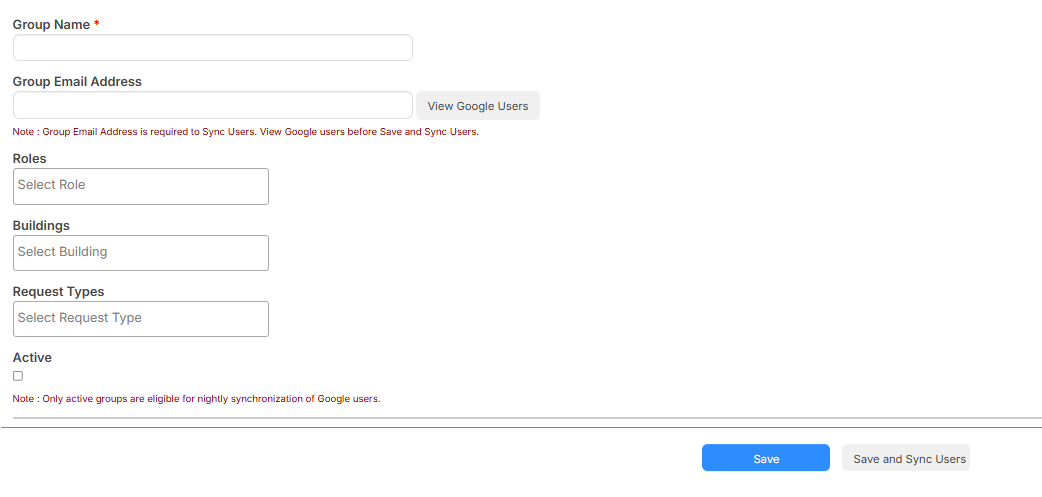
- Enter a Group Name and Group Email Address.
Note: The View Google Users button shows the users within that group. - Select the default Roles you want the users to have.
- Select the default Buildings you want the users to have access to.
- Select the default Request Types you want the users to have access to.
- To activate the group, select the Active checkbox.
Note: Only active groups are synced nightly. - Click Save and Sync Users.
- Repeat steps 2-4 for any additional Google groups you want.