View asset request and asset history logs
Any time there is an update or request for an asset, a log is created. The log tracks all changes made and displays the details. Users with the View Requests and View Assets permissions will see a Requests tab; users with the View Assets permission will see a History tab.
To view the asset request or asset history log:
- Select Assets > View All Assets or View All Assets (all fields).
- Find a request by searching or using a filter(s).
Note: To view all requests, in the column of your choice, click . In the filter () section, select Check All, and then click Filter.
- Click the name of the asset you want.
- On the asset details page, do one of the following:
- Click the Requests tab. The Requests By Asset page appears.
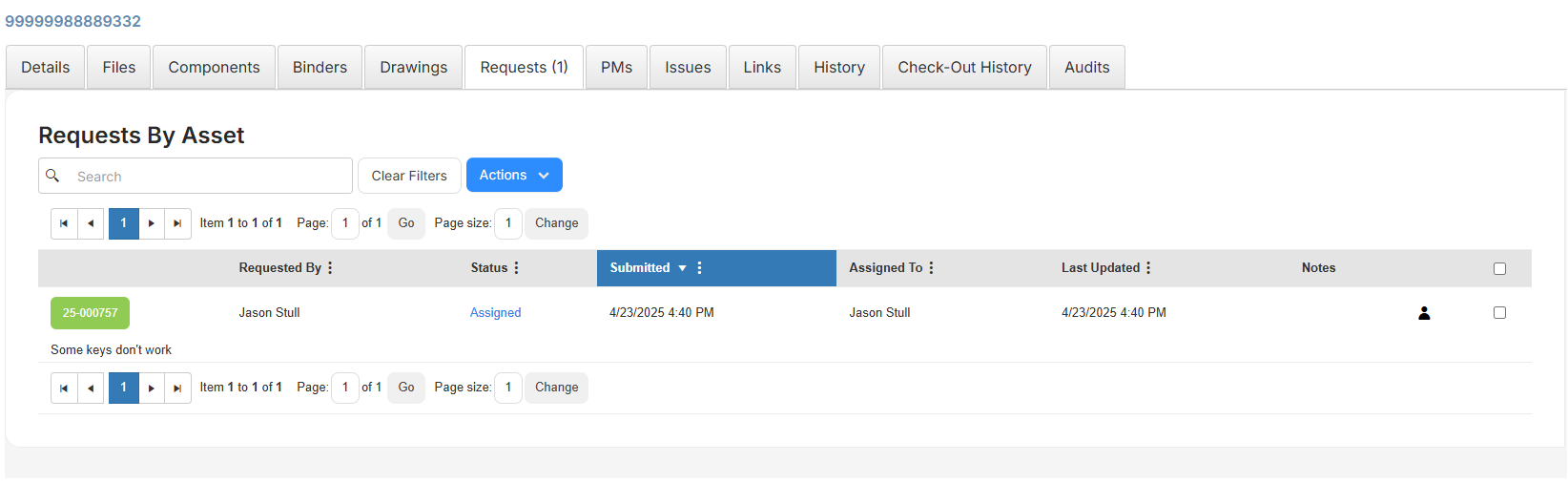
To view a request, click the request number.
- Click the History tab.

- Click the Requests tab. The Requests By Asset page appears.